How to Restart PC With Keyboard (Four Routes)
Windows gives you several ways to reboot without a mouse. The quickest is three keys, and the rest are useful when the first one will not open.
To restart a Windows PC with the keyboard alone, press Windows + X, then U, then R. That is three keystrokes, and the PC reboots immediately with no confirmation screen. If that menu will not open, press Windows + D to reach the desktop, then Alt + F4, and choose Restart in the dialog that appears.
Knowing how to restart PC with keyboard shortcuts is useful when a mouse has died, a trackpad has stopped responding, or an application is covering the Start button and refusing to close.
All four routes below work on Windows 11 and Windows 10. They are listed quickest first.
How to restart PC with keyboard using Windows + X
The Power User menu is the fastest route because every entry in it has an underlined letter you can press instead of clicking.
1. Press Windows + X. A menu opens above the Start button with entries such as Power Options, Device Manager and Task Manager.
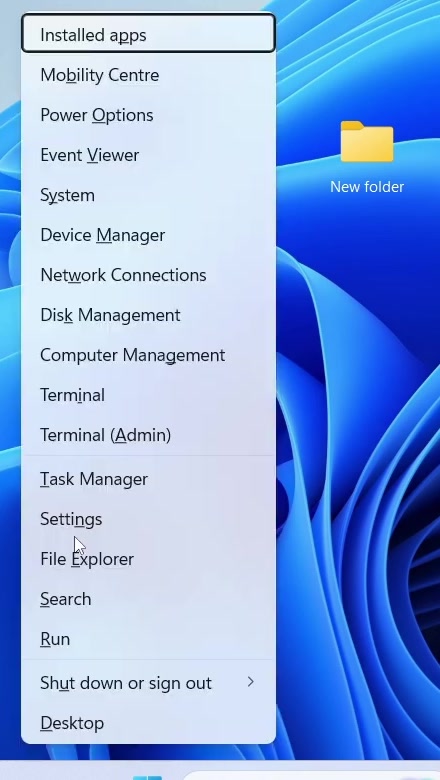
2. Press U. That is the underlined letter in Shut down or sign out, and it opens a small submenu.
3. Press R for Restart. The PC begins restarting straight away.
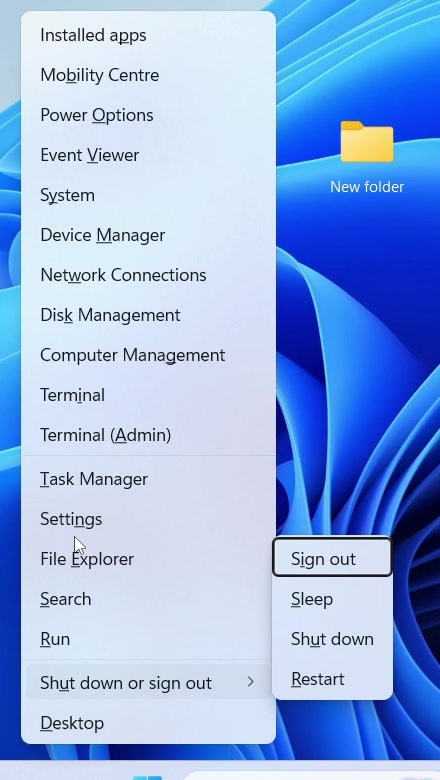
Nothing asks you to confirm. If unsaved work is open, Windows will prompt the application to close it first, which can briefly pause the reboot.
Alt + F4 from the desktop
This is the route to use if the Power User menu does not appear. The catch is that Alt + F4 closes whatever window is in focus, so you have to clear the desktop first.
1. Press Windows + D. Every open window minimises and the desktop takes focus.
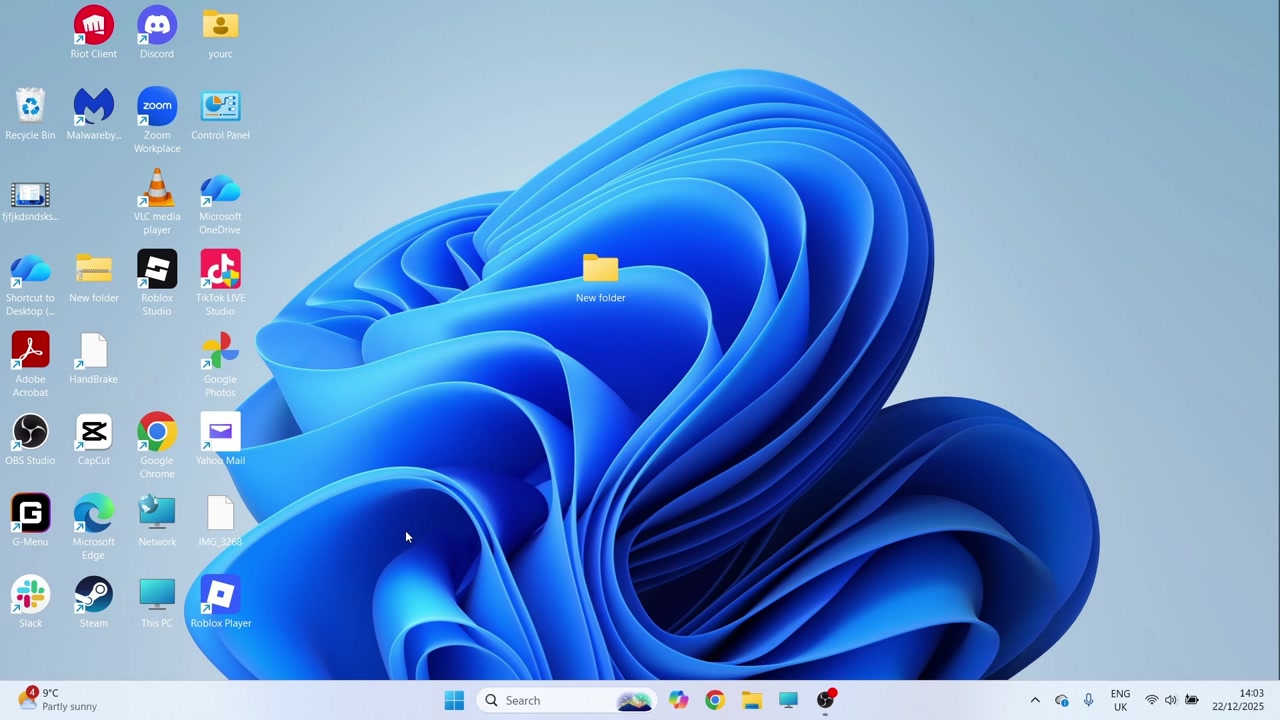
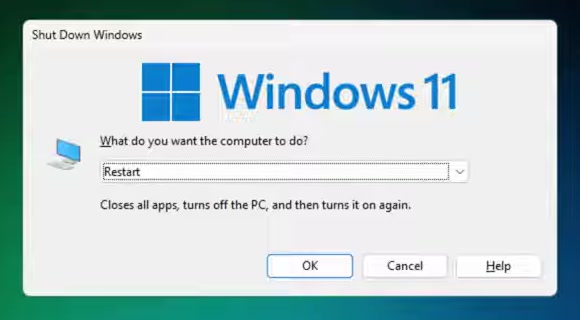
2. Press Alt + F4. The Shut Down Windows dialog opens. On laptops where the function keys double as media controls, you may need Fn + Alt + F4.
3. Use the Up and Down arrow keys to put Restart in the drop-down, then press Enter.
Ctrl + Alt + Delete and the Run box
Ctrl + Alt + Delete opens the security screen, which carries a power icon in the bottom-right corner. Sources disagree on how reliably you can reach that icon from the keyboard: HP's guide says to press Tab to move to it and then use the arrow keys, while Digital Citizen treats the power button there as something you click. Try Tab first, and fall back to one of the routes above if focus will not land on it.
The Run box is more predictable. Press Windows + R, type shutdown /r /t 0 and press Enter. The /r switch restarts the computer and /t sets the delay in seconds, so a zero means now.
What this does not do
None of these shortcuts will revive a PC that has stopped responding to the keyboard entirely. If no key does anything, the problem is below Windows, and the remaining option is the physical power button. That is a hard cut rather than a restart, and it can leave files mid-write.
Watch the delay value too. Microsoft's documentation notes that when the timeout is greater than zero, shutdown implies the /f switch and closes running applications without warning. Using /t 0 avoids that behaviour.
Common questions
Does Windows + X work on Windows 10? Yes. The menu layout differs slightly, but U followed by R works the same way.
What if I leave off the delay? Running shutdown /r on its own uses the default time-out, which Microsoft documents as 30 seconds. Some guides quote 60 seconds instead, so set /t yourself if the timing matters.
Is there a single shortcut for restart? Not by default. Windows has no built-in one-key reboot, which is why every route here is a short sequence rather than one combination.
If the option is not there
A missing Restart entry usually means a managed device: workplace policy can hide power options. A missing Power User menu points instead at Explorer having crashed, which a sign-out and sign-in will clear.
If no shortcut registers at all, the keyboard itself is the suspect rather than Windows. That is a different job, and it starts with whether the keyboard is connecting at all. For machine-specific routes, including the recovery options, see how to reboot a Dell laptop.