Logitech Keyboard Not Connecting (Fixes That Work)
A Logitech keyboard that will not connect is usually a power, port or Easy-Switch problem rather than a broken keyboard. Here is the order to check them in, and how to re-pair it.
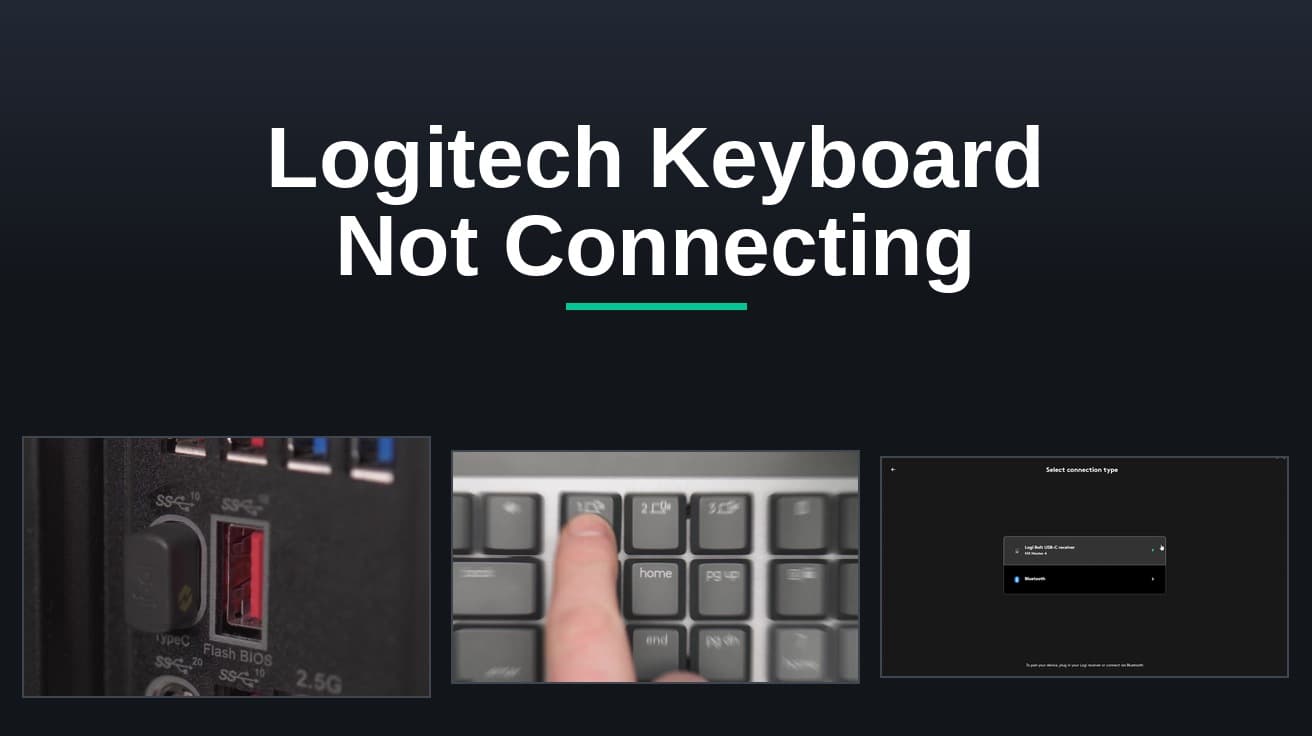
A Logitech keyboard not connecting almost always comes down to three things: flat batteries, a receiver plugged into a hub or dock instead of the computer itself, or the keyboard sitting on the wrong Easy-Switch channel. Change the batteries, move the receiver to a USB port on the machine, and press the Easy-Switch key (1, 2 or 3) that belongs to the computer in front of you. If it still will not connect, re-pair it in Logi Options+.
Logitech keyboards connect in one of two ways, and the fix depends on which you have: a small USB receiver that came in the box, or Bluetooth with no receiver at all. Plenty of recent models do both and switch between them with the Easy-Switch keys on the top row.
That matters before you change a single setting. A receiver-only keyboard will never appear in your computer's Bluetooth list no matter how long you wait, and a keyboard paired to a different machine on channel 2 looks exactly like a dead one. Work out which kind you have, then start at the top of the list below.
What causes a Logitech keyboard not connecting
Power is the most common cause and the easiest to rule out. These keyboards have a physical on/off switch, usually on the top edge or underside, and it gets knocked in a bag or during a desk tidy. Batteries that are low rather than empty are worse: the keyboard wakes, connects briefly, then drops.
Where the receiver is plugged in is next. Logitech's troubleshooting guidance is blunt about this: the receiver must be plugged directly into your computer, not into a USB hub, dock, extender or KVM switch. Distance and interference matter too. The link is rated to roughly 33 feet (10 metres), and Logitech advises keeping phones and wireless access points away from the receiver and not sitting the keyboard on metal.
The last cause is pairing itself. Each Easy-Switch key holds one device, so a keyboard set to channel 3 ignores the computer on channel 1. And if the receiver is new, or the keyboard has been reset, the pairing is simply gone and has to be made again.
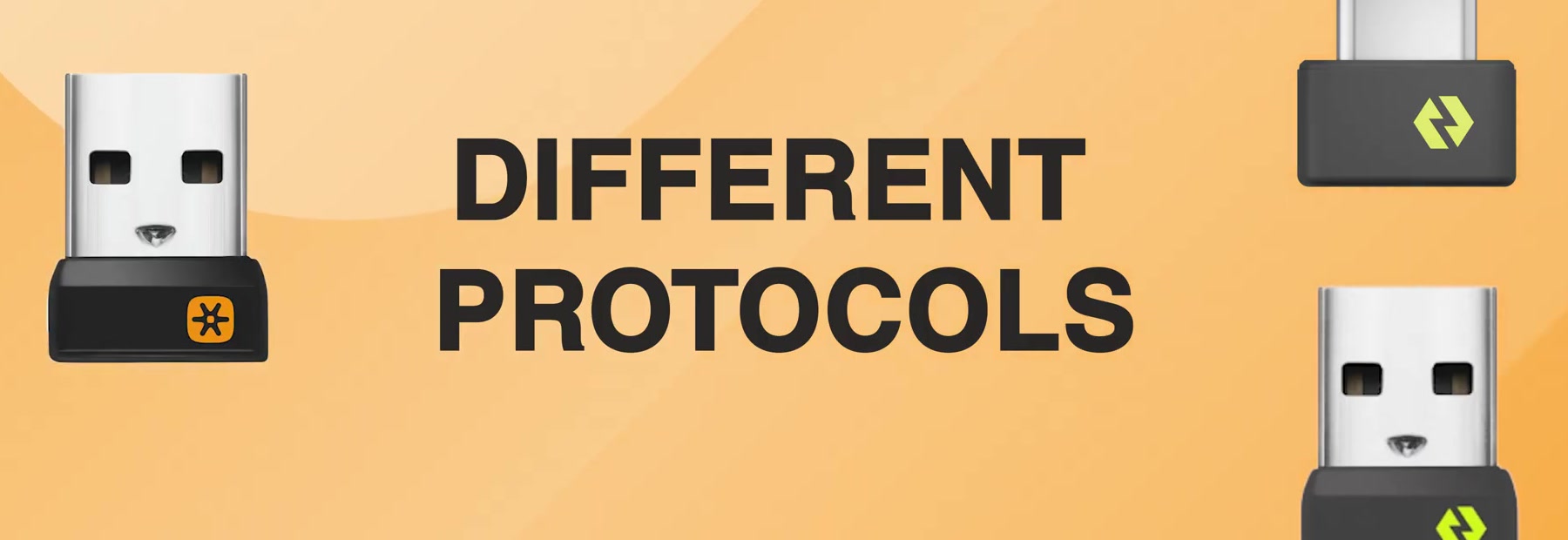
One thing to check before you buy a replacement dongle: Logitech's two receiver systems are not interchangeable. Logitech states that Logi Bolt wireless products cannot be paired with a Logitech Unifying USB receiver, and the reverse is also true. Look at the logo printed on the underside of the receiver and on the keyboard itself. The orange six-point star is Unifying; the Bolt mark is different.
Start with power, the port and the distance
1. Turn the keyboard off and on again at its physical switch, then put in fresh batteries or charge it. If the keyboard has a status LED, it should light when you press a key.
2. Unplug the receiver and plug it into a USB port on the computer itself. If the only ports you have used are on a monitor, dock or hub, this alone fixes a surprising number of cases. Logitech also suggests a front port rather than a rear one if the machine is a tower under a desk.
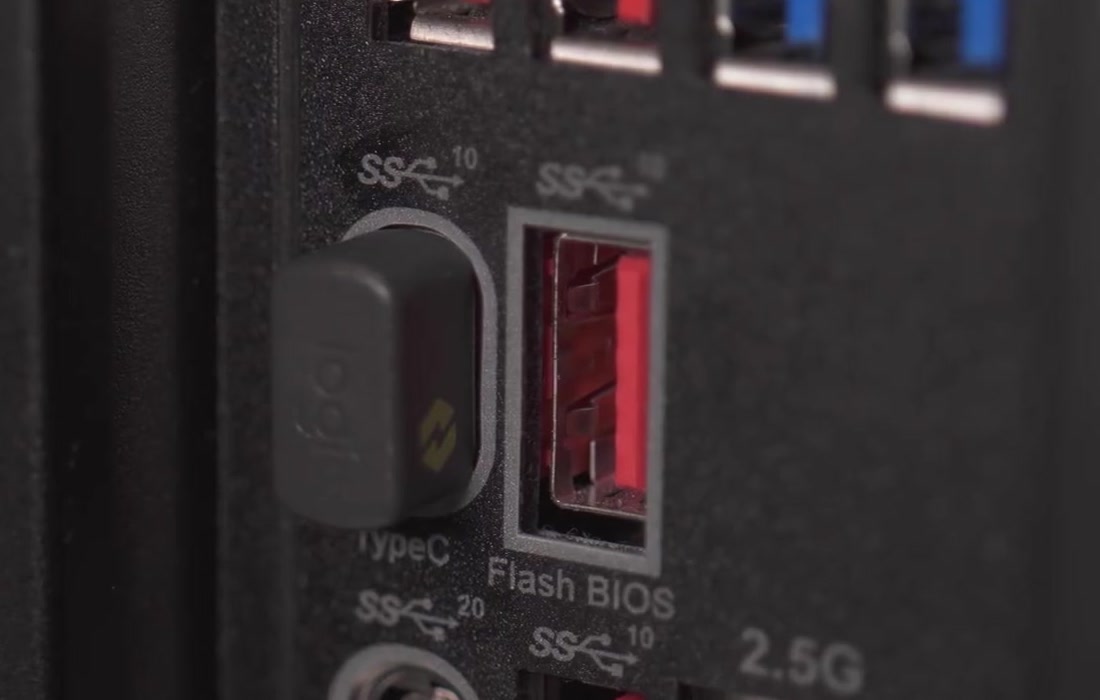
3. Move the keyboard closer, take it off any metal surface, and move phones or a wireless access point away from the receiver. Then restart the computer with the receiver still plugged in.
Press the right Easy-Switch key
If the keyboard has 1, 2 and 3 keys with small monitor icons on them, it remembers up to three computers. A short press on one of those keys switches to that slot. That is all it takes to fix a keyboard that types on the laptop you closed an hour ago and nowhere else.
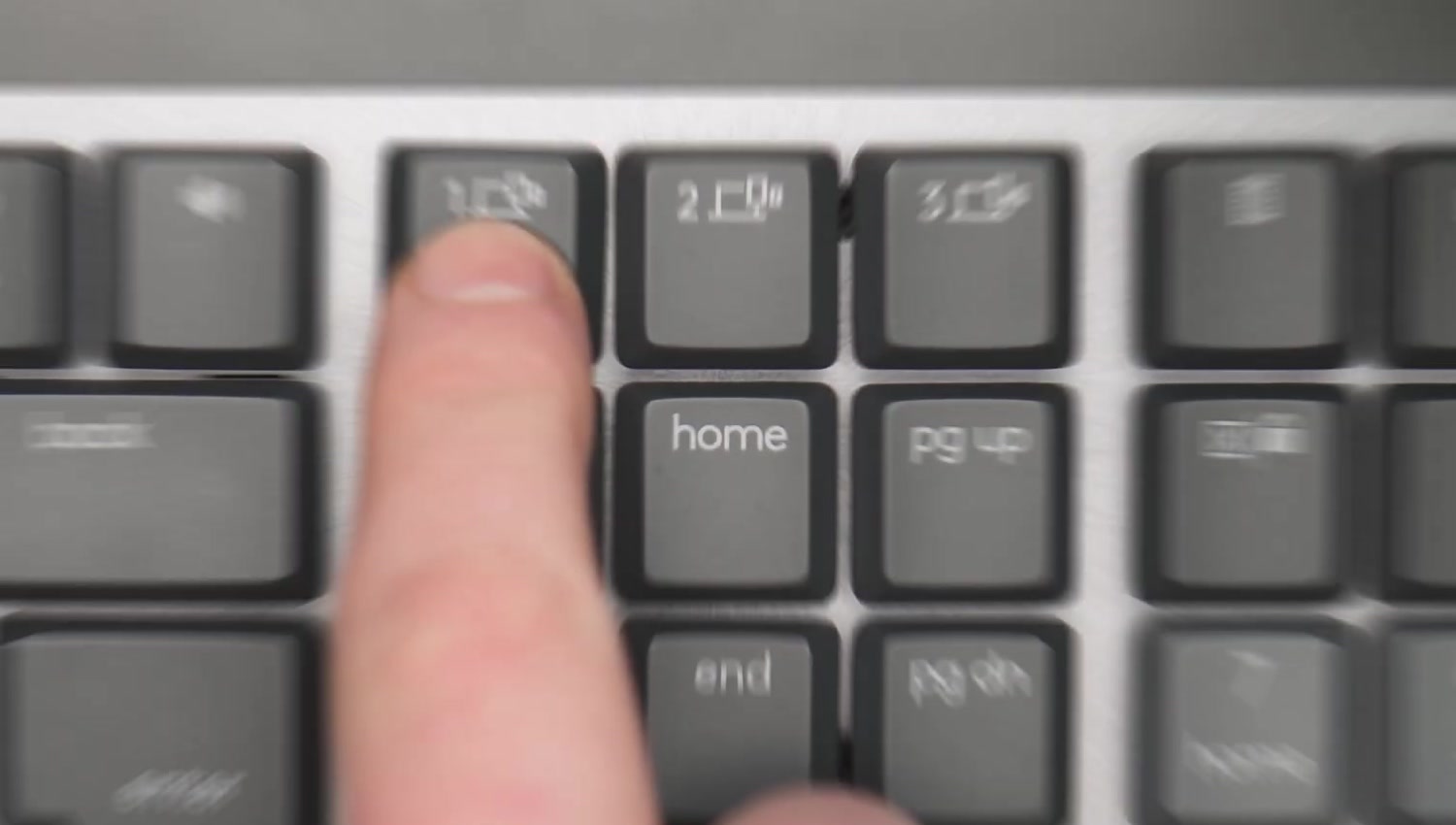
Press 1, type something, then try 2 and 3 before assuming the keyboard is broken. If none work, hold one for about three seconds until the LED above it blinks quickly. That is pairing mode, and it sets you up for the next section. Logitech says to hold up to five seconds if nothing happens at three.
Re-pair the keyboard to its receiver
This is the step that fixes a Logitech keyboard not connecting after a receiver swap, a reset, or a pairing gone stale. It happens in Logi Options+, which replaced the older Logitech Options app and the standalone Unifying Software. Logitech has ended support for both, so install Logi Options+ rather than whichever utility you used years ago.
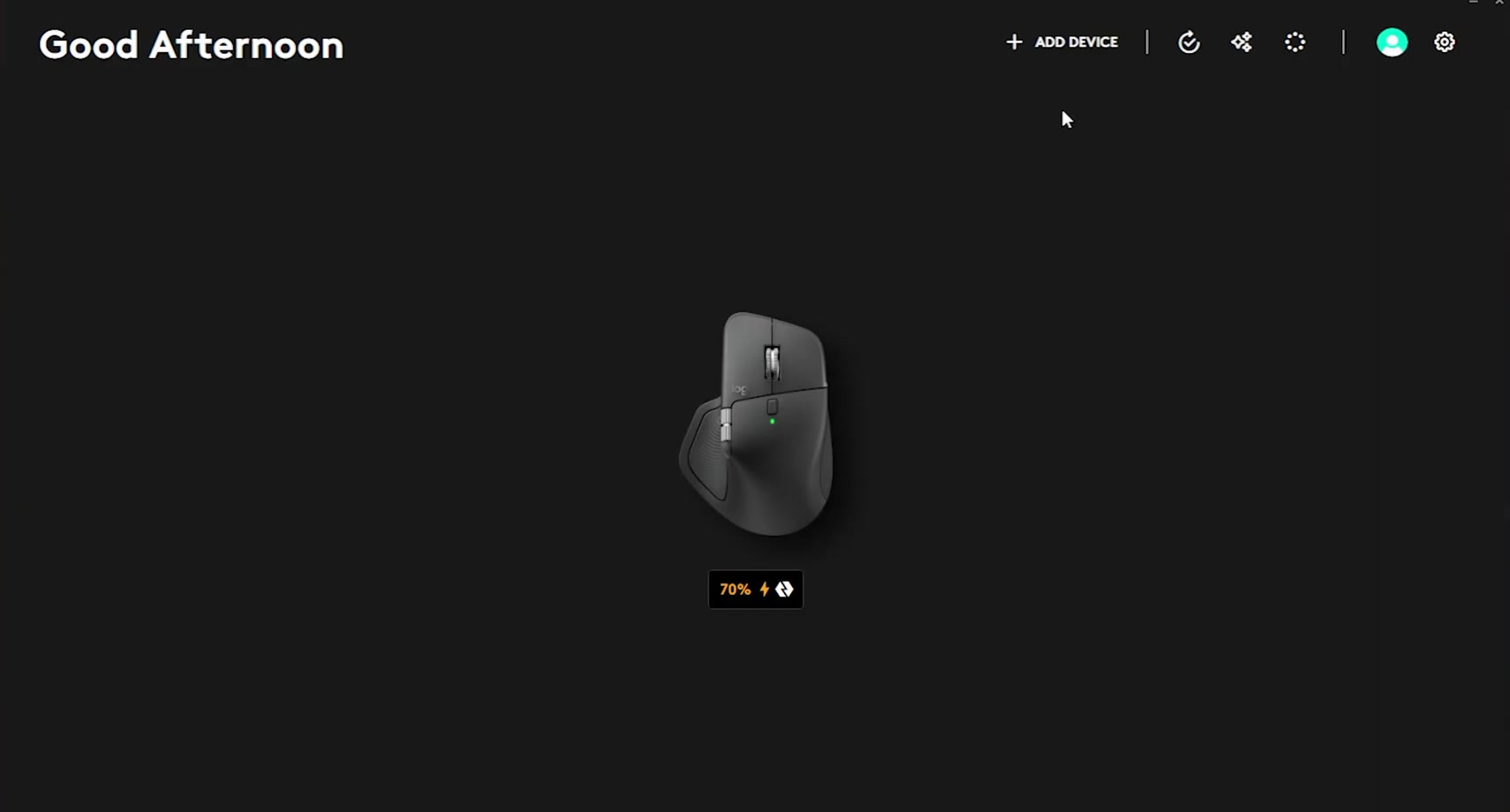
1. Plug the receiver into a port on the computer, open Logi Options+, and click ADD DEVICE at the top of the window.
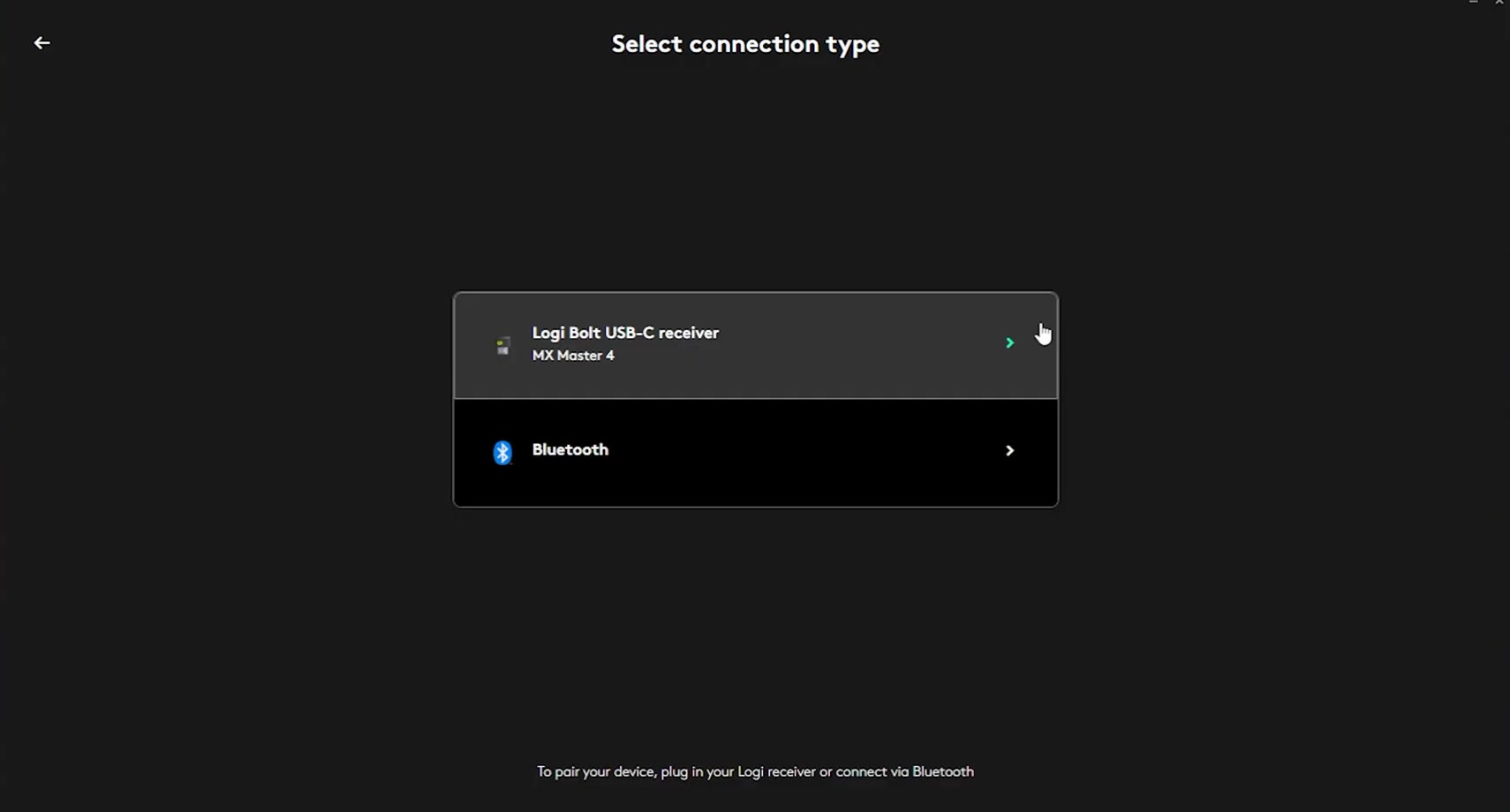
2. In the Select connection type window, choose your receiver from the list. Each receiver plugged into the machine appears separately, so pick the one you just inserted rather than an old one still in another port.
3. Briefly press the Easy-Switch key you want to assign to this computer so its LED lights, then press and hold the same key until the LED blinks quickly.
4. Choose the device category when asked, then select your keyboard from the list that appears.
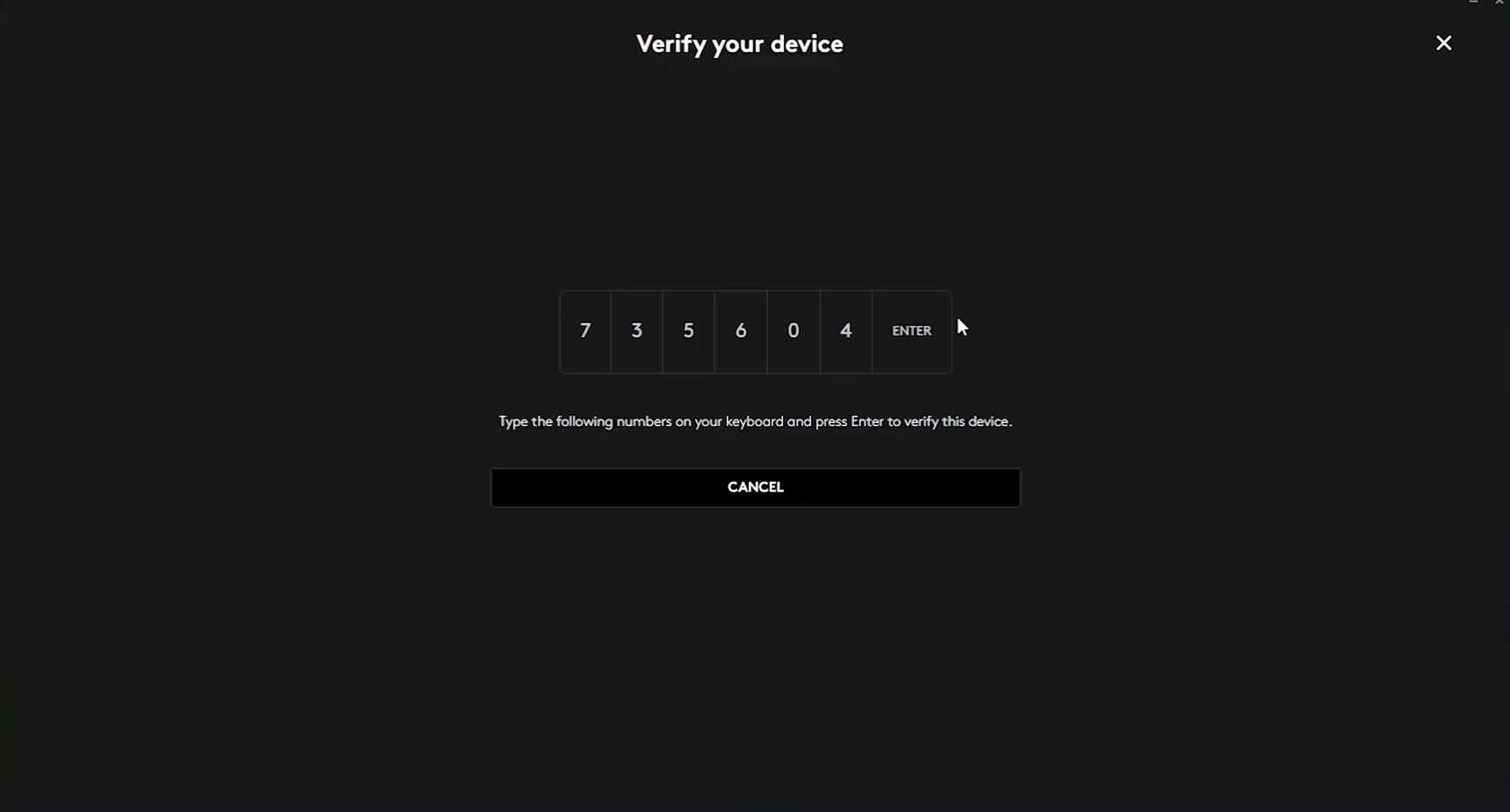
5. Finish the verification. Logi Options+ shows a short run of numbers and asks you to type them on the keyboard and press Enter, proving the keyboard it found is the one in your hands.
There is no Logi Options+ app on a Chromebook. Logitech points ChromeOS users to its browser-based Logi Web Connect tool, which runs the same pairing flow.
Pair over Bluetooth instead
If your keyboard supports Bluetooth, you can skip the receiver entirely. Put the keyboard into pairing mode first by holding an Easy-Switch key until its LED blinks quickly, then add it from the operating system.
On Windows 11, open Settings > Bluetooth & devices, make sure Bluetooth is on, then choose Add device and pick Bluetooth. Microsoft's current guidance offers a shorter route too: click the network, sound or battery icon in the taskbar, open Manage Bluetooth devices from the Bluetooth tile, and pick the keyboard under New devices. Note that Logitech's own pairing page still gives the older Windows 10 path, Settings > Devices > Bluetooth & other devices, so the labels on screen may not match the instructions you are reading. If Bluetooth is off entirely, our guide to turning on Bluetooth in Windows covers where the toggle lives.
On a Mac, open System Settings > Bluetooth, then click the keyboard in the device list and confirm. On iPadOS the route is Settings > Bluetooth, and on Android it is Settings > Connected devices. If a pairing code appears, type it on the Logitech keyboard and press Enter.
If that didn't work
A keyboard can be paired and still not connected, which looks identical from the outside. Remove it from the computer's Bluetooth list and add it again from scratch rather than waiting for it to reconnect.
If nothing at all pairs over Bluetooth, the adapter is the suspect rather than the keyboard. Try a different device you own, such as a set of headphones on the same laptop. If that fails too, run the Bluetooth troubleshooter at Settings > System > Troubleshoot > Other troubleshooters, then update the adapter driver in Device Manager: expand Bluetooth, right-click the adapter, choose Update driver.
While you are here, check for a keyboard firmware update in Logi Options+ and install any pending Windows or macOS updates, both of which Logitech lists among its troubleshooting steps. Logitech also names Windows USB port power settings as a likely cause of dropouts, but does not publish steps for changing them, so treat that as a lead rather than a fix.
Finally, plug the receiver into a different computer and see whether the keyboard works there. That single test separates a faulty keyboard from a faulty port, a faulty receiver, or a software problem on the original machine.
Still not connecting
Most cases of a Logitech keyboard not connecting end well before this point. If the keyboard works on a second computer, it is fine and the problem is the first machine: USB drivers, the Bluetooth adapter or the ports. If it fails everywhere, and the receiver matches the keyboard's protocol and sits in a direct port, you are into hardware.
Replacement receivers are sold separately and pair to an existing keyboard using the Logi Options+ steps above, as long as you buy the matching type. Otherwise, check the warranty and contact Logitech support with the model number printed on the underside.