How to Uninstall Apps on iPhone (3 Ways That Work)
iOS gives you three ways to remove an app, and they do not all do the same thing. Here is each route, plus what to check if the Delete option is missing.
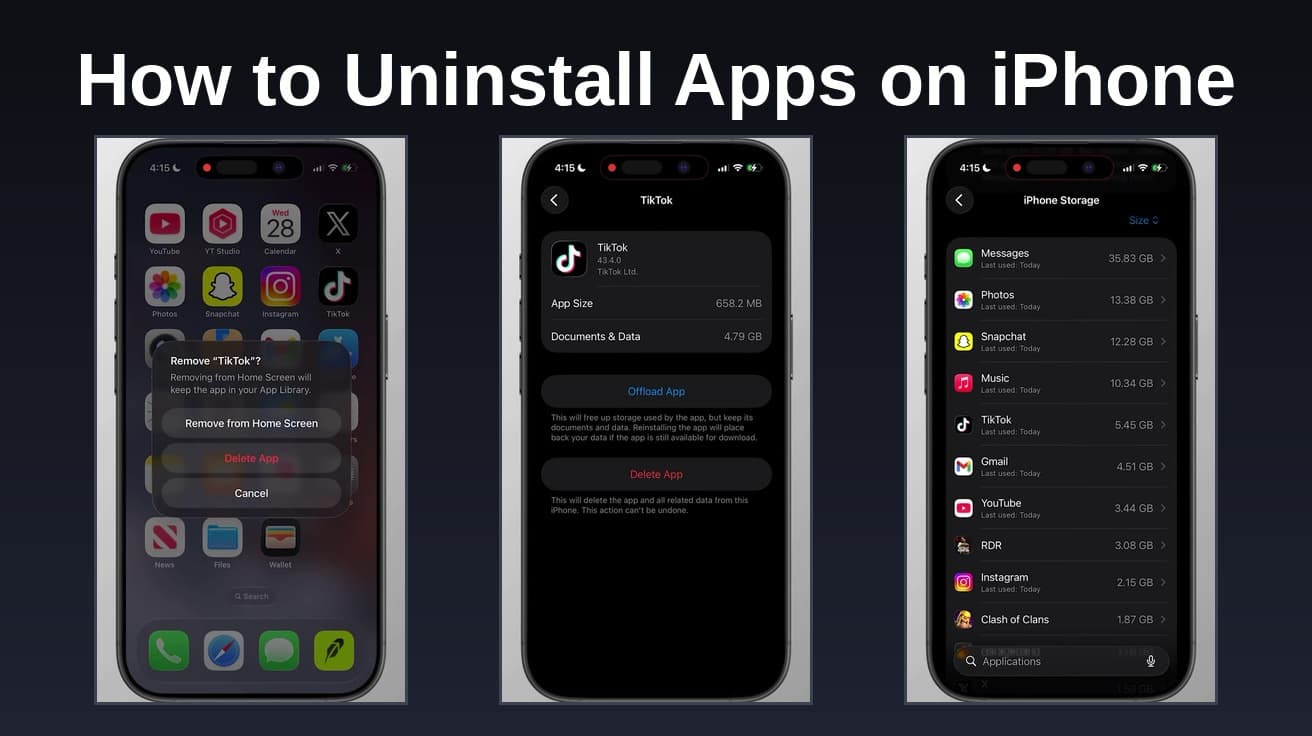
Touch and hold the app on the Home Screen, tap Remove App, then tap Delete App and confirm with Delete. That takes the app and its on-device data off the phone. If you only want the icon gone, pick Remove from Home Screen instead.
There are two different things people mean when they ask how to uninstall apps on iPhone, and iOS makes you choose between them every time. One clears the icon and leaves the app sitting in your App Library. The other removes the app and the data it has saved on the phone.
Both routes are below, along with the Settings path that shows you how much space each app is actually taking up before you decide.
How to uninstall apps on iPhone from the Home Screen
This is the quickest way, and it works for almost anything you installed yourself.
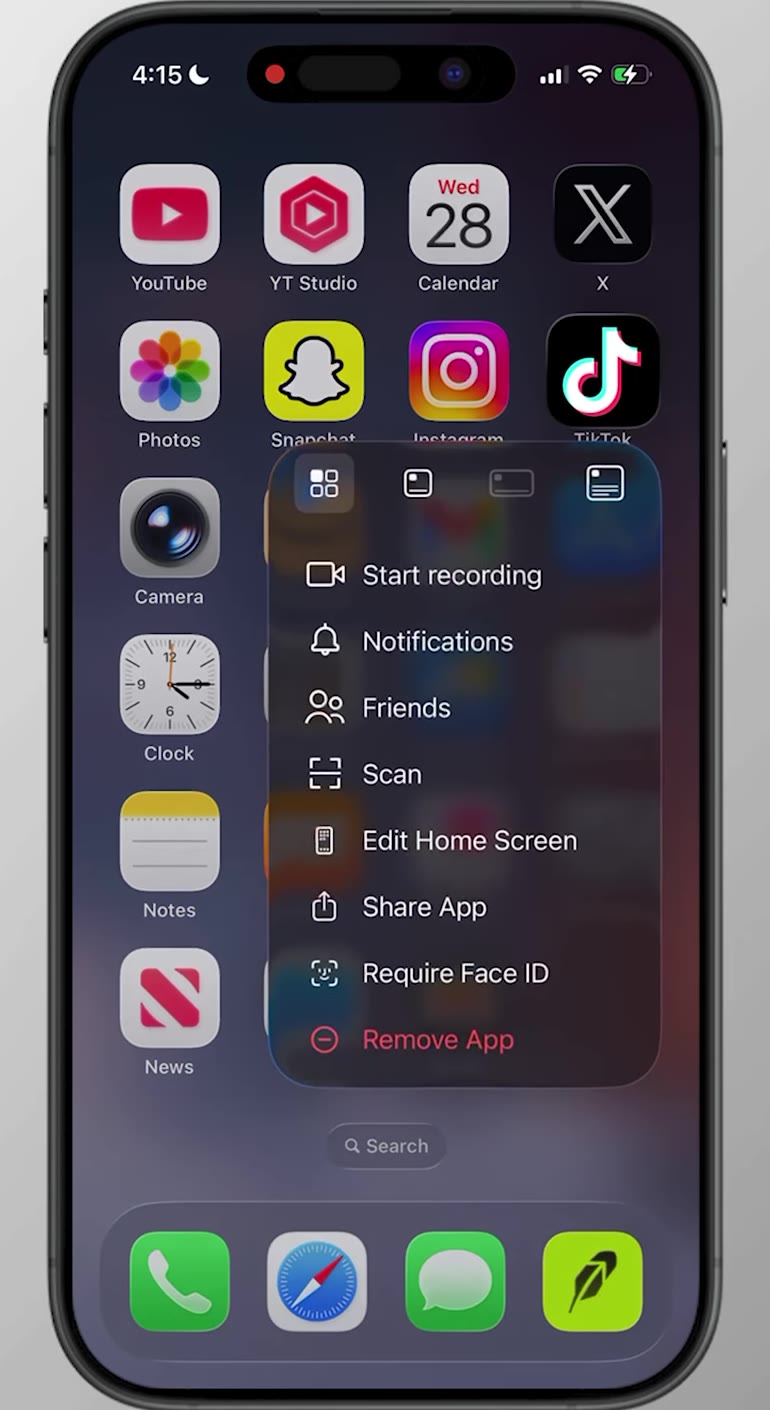
1. Touch and hold the app icon until a menu appears, then tap Remove App at the bottom of it. It is the red entry.
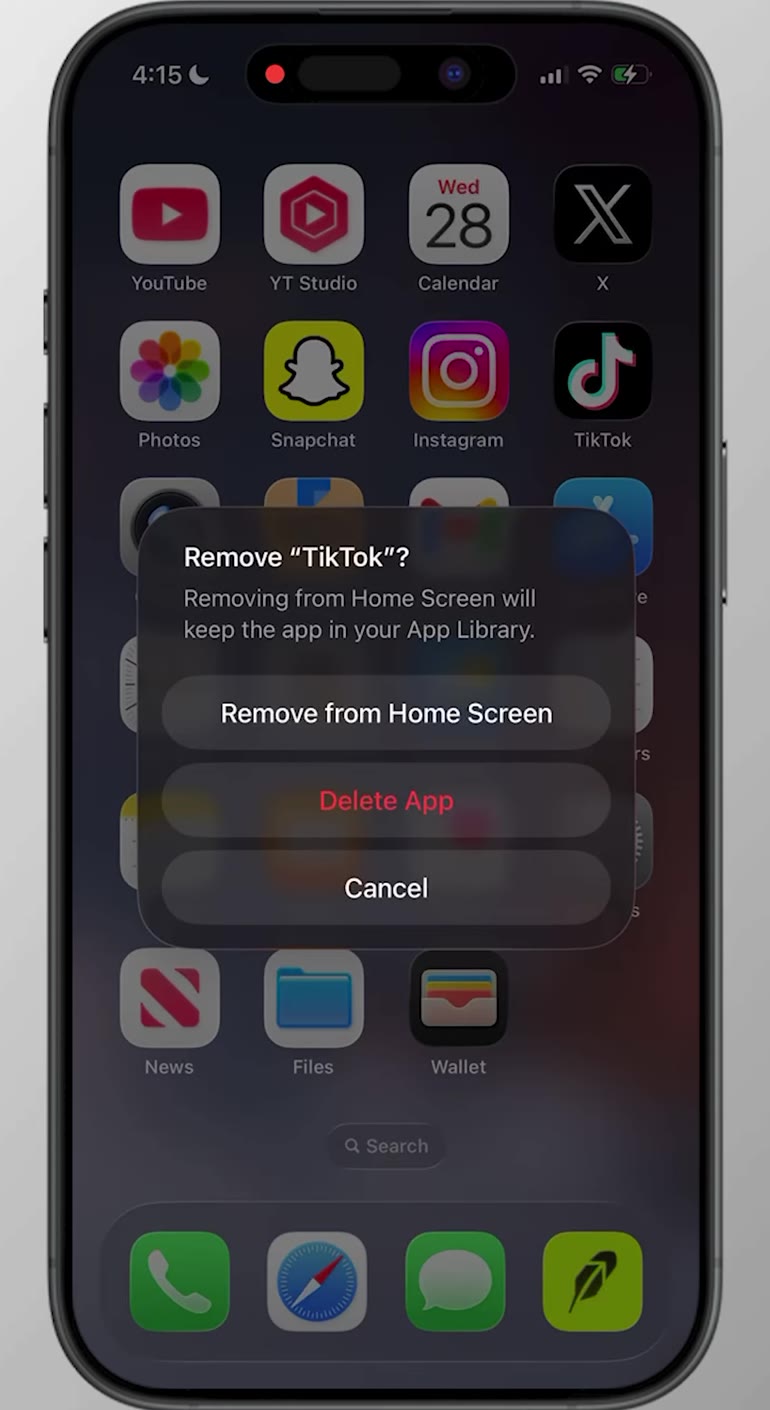
2. Tap Delete App, then tap Delete to confirm.
If the icons start jiggling instead of showing a menu, you held on slightly too long. Tap the minus sign in the corner of the app, tap Delete App, then tap Done when you are finished.
Picking Remove from Home Screen at that second step does something quite different. The app stays installed and keeps its data, it just moves out of sight into the App Library, which is the screen you reach by swiping left past your last Home Screen page.
Delete from Settings when you are clearing space
The Home Screen route is fast but tells you nothing about size. Settings does.
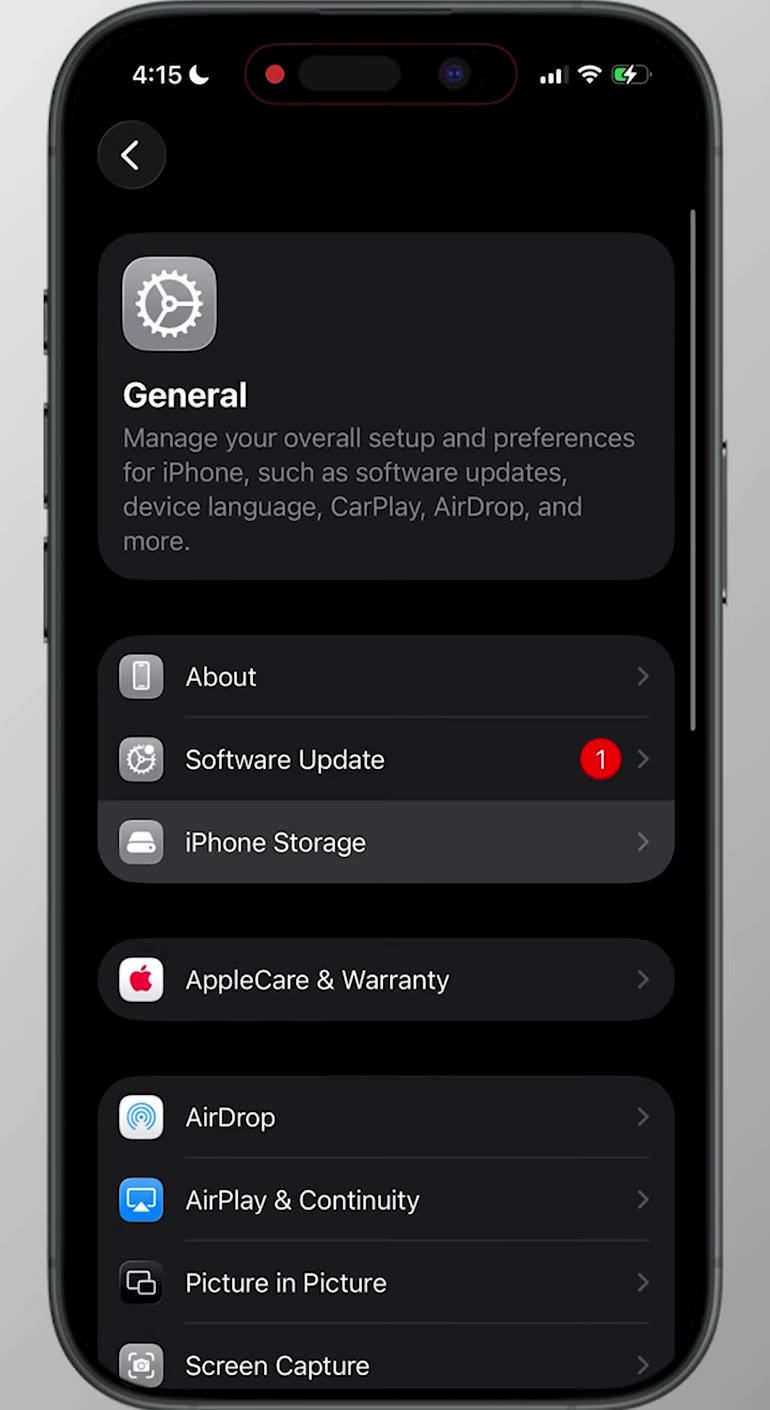
1. Open Settings, tap General, then tap iPhone Storage.
2. Give the list a moment to load. Apps are sorted largest first, with the date each one was last used underneath.
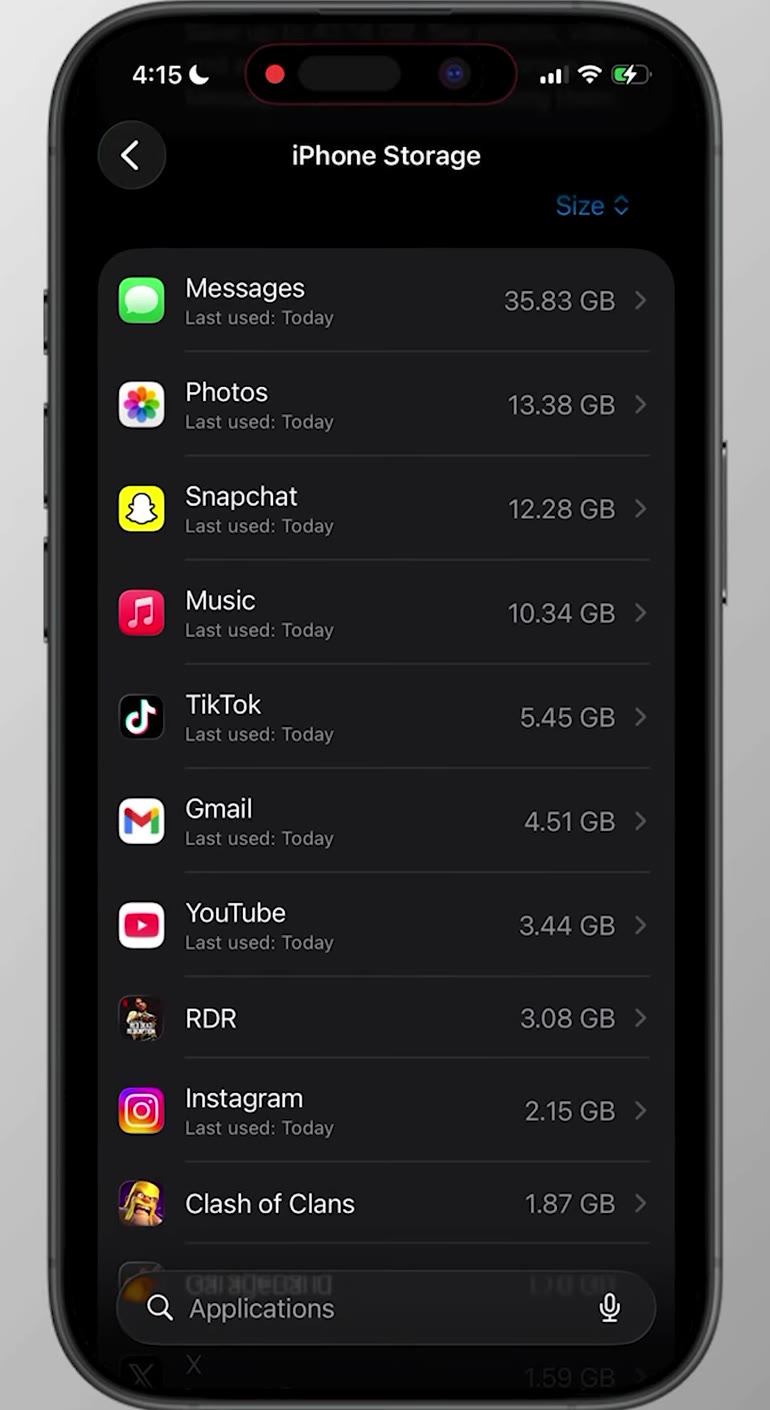
3. Tap the app you want gone, then tap Delete App and confirm.
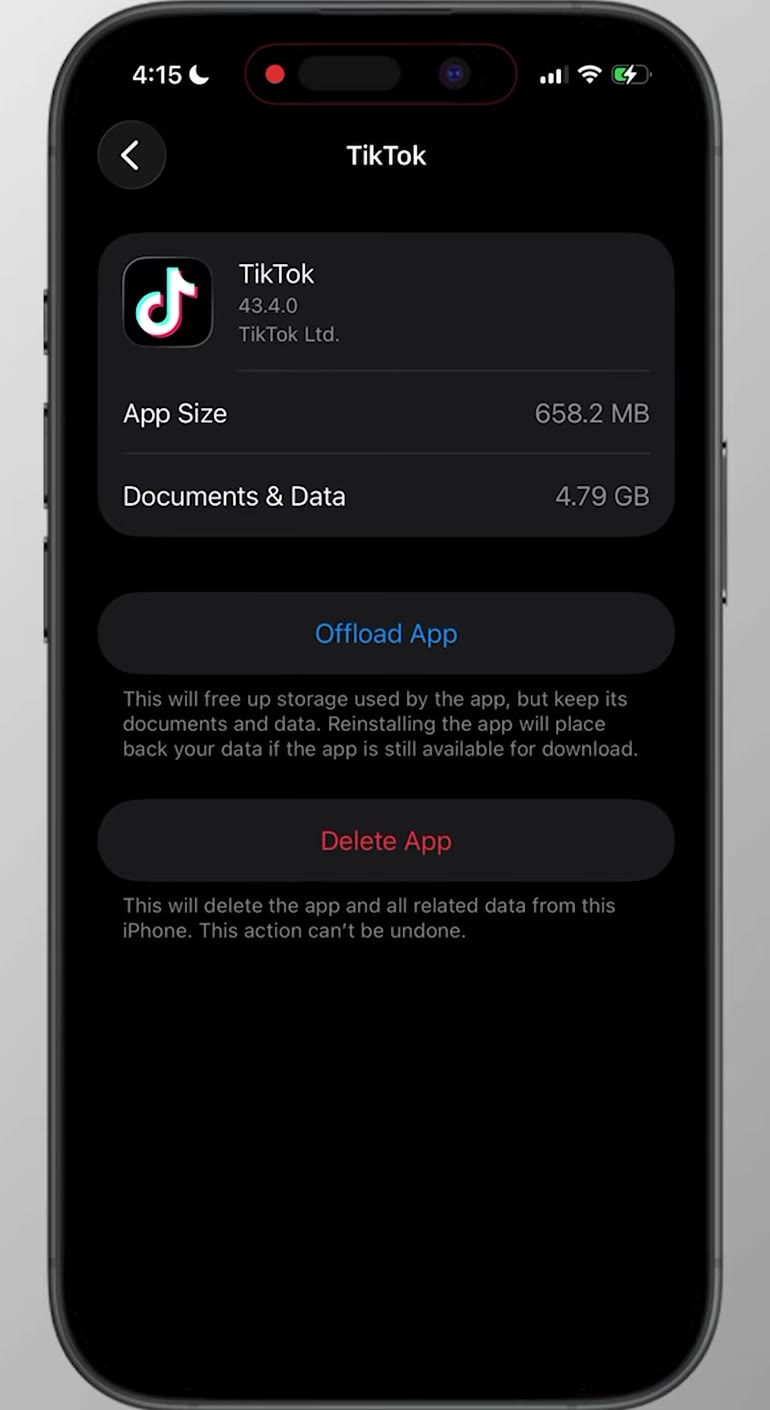
That split is worth reading before you tap anything. App Size is the program itself; Documents & Data is everything it has saved on the phone since. For media and social apps, the second number is often the far bigger one.
Offload keeps your data, delete does not
The same screen offers Offload App above the delete button. Apple's description on that page is that offloading frees up the storage the app uses but keeps its documents and data, while deleting removes the app and its related data — and the delete note adds that the action cannot be undone.
Offloading suits an app you expect to come back to: a game you have paused, an airline app between trips. The icon stays on the Home Screen with a small cloud symbol next to the name, and tapping it reinstalls the app and puts your data back, provided the app is still available to download.
What uninstalling does not do
It does not cancel a subscription. Apple states plainly that deleting an app does not automatically cancel its in-app subscriptions, so cancel anything you are paying for separately. Otherwise the billing continues for an app that is no longer on the phone.
It does not remove the app from your purchase history either. Anything downloaded under your Apple Account stays there, and you can find and reinstall apps you have deleted at no cost.
And it does not touch data the app holds in iCloud or on its own servers. Your account with that service still exists; only the local copy has gone.
Common questions
Can I delete Apple's own apps? Some of them. Core apps such as Phone, Messages, Settings, Photos, Camera, Safari and the App Store cannot be removed. Many other Apple apps can be, and they reinstall from the App Store if you change your mind.
Will I lose anything I paid for? No. Purchases are tied to your Apple Account rather than to the installed copy.
Does it free up as much space as the number suggests? Roughly. Apple notes that cached and temporary data might not be counted in an app's listed usage, so the saving can differ a little. If space is the goal, it is worth pairing this with a clear-out of app caches and the other ways to free up storage on an iPhone.
If there is no Delete App option
Three things commonly block it.
A Screen Time restriction. Go to Settings > Screen Time > Content & Privacy Restrictions > iTunes & App Store Purchases, enter the Screen Time passcode, tap Deleting Apps and set it to Allow. If Screen Time is switched off altogether, this is not the cause.
A work or school profile. On an iPhone managed by an organization, an administrator can prevent apps being removed. Only they can lift that, so you may have to hide the app instead.
An unfinished download. An app still showing "Waiting…" under its icon cannot be removed until the download either completes or is cancelled.