Switch Controller Not Connecting (Sync and Re-Pair Fixes)
A Switch controller that won't connect has usually lost its pairing rather than failed. Here is the order to work through, from a single SYNC press to clearing every pairing on the console.
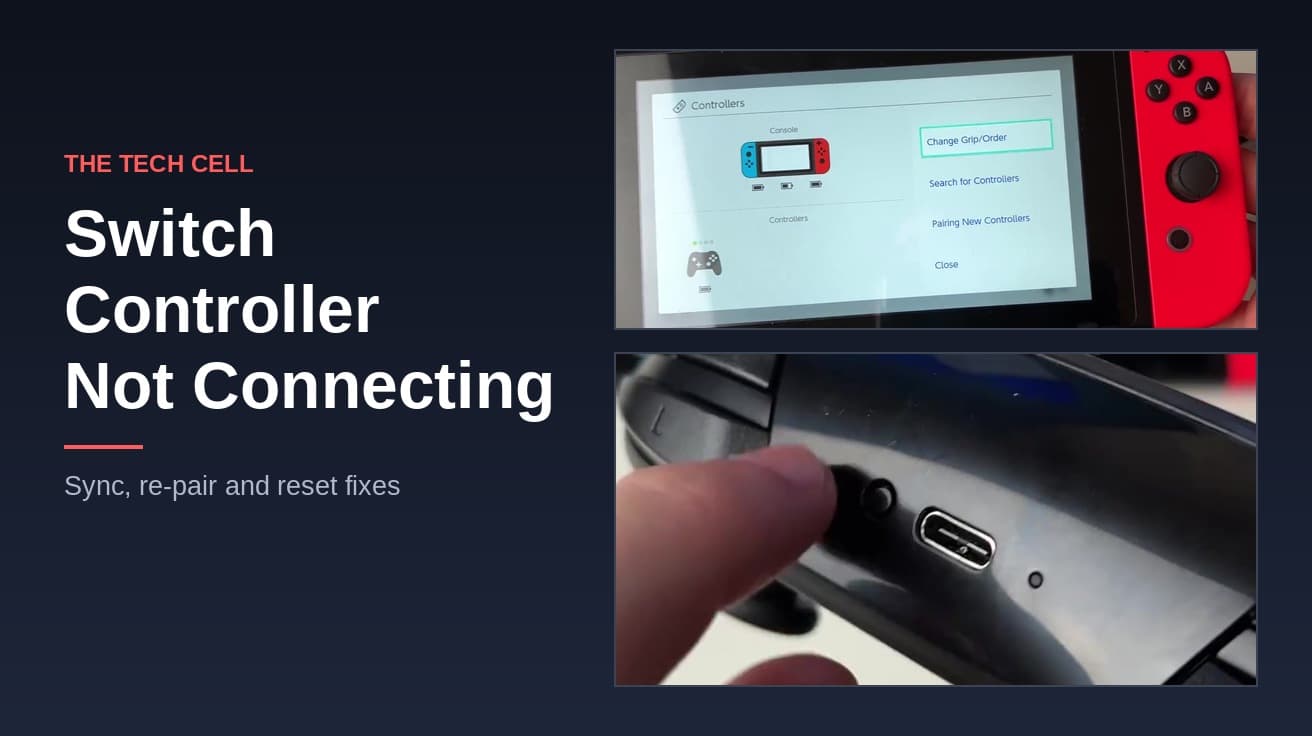
A Switch controller not connecting has usually lost its pairing rather than broken. Press the SYNC button once, then press A to wake the controller. If it still does nothing, open Controllers › Change Grip and Order on the console and hold SYNC for at least one second to pair it again.
Two different problems get described as a Switch controller not connecting. One is a controller that will not pair at all — no player light, no response. The other is a controller that pairs and then drops out mid-game. The steps below cover both, in the order Nintendo itself puts them.
One thing to get out of the way first: the console has to be awake. Nintendo is explicit that you cannot pair a controller while the Switch is in sleep mode, which quietly accounts for a fair number of failed attempts.
Switch controller not connecting: the usual causes
The most common cause is simply lost or stale pairing information. A controller remembers one console at a time, so a Pro Controller that was synced to a friend's Switch, or a second console in the house, has to be paired again before it will talk to yours.
A flat battery is the next candidate, and it is easy to misread because a controller with almost nothing left will sometimes flash its player lights and then give up. Nintendo lists charging the controller as a step in its own troubleshooting rather than an afterthought.
Then there is the wireless environment. Nintendo names three specific culprits: interference from nearby appliances such as microwaves and cordless phones, metal around the console — metal shelving or a metal cabinet — and covers on the console or controllers that Nintendo has not officially licensed.
Finally, there is a connection budget. A Switch or Switch 2 supports up to eight wireless controllers, but the usable number depends on the controllers and software in play. If a Bluetooth audio device is connected, only two wireless controllers can connect at once. Disconnecting the headphones is what frees up the third slot.
Press SYNC, then pair from Change Grip and Order
This is the fix that resolves most cases, and it takes under a minute.
1. Find the SYNC button. On the Pro Controller it sits on the top edge, alongside the USB-C charging port. On a Joy-Con it is the small button on the inside rail, between the SL and SR buttons.
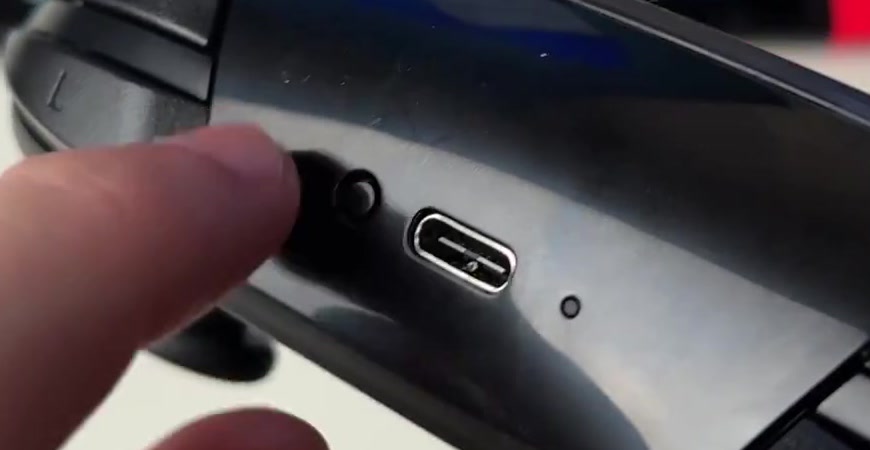
2. Press SYNC once, then press A or a direction button to power the controller back on. Nintendo warns that pressing SYNC interrupts the controller's wireless communication with the console — that is the point here. You are deliberately dropping the link so it can be rebuilt.
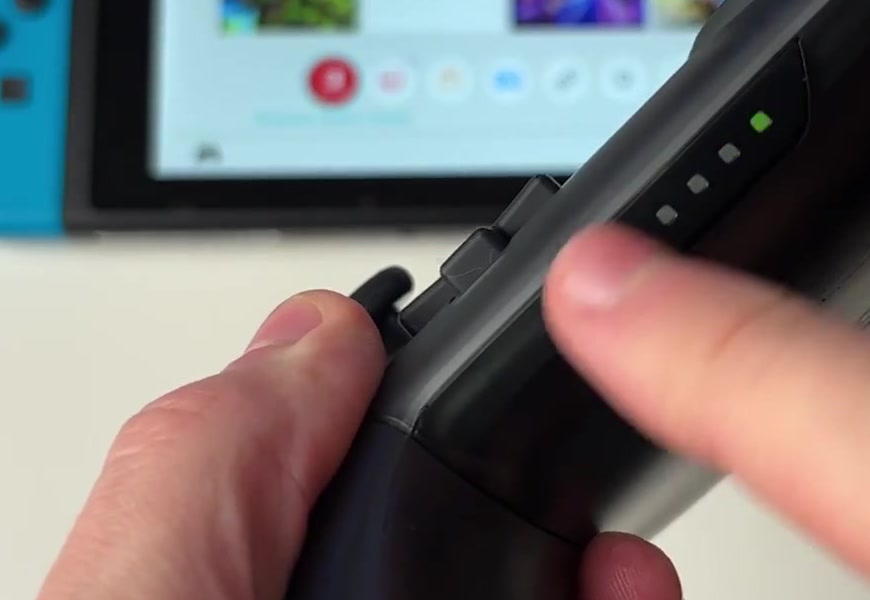
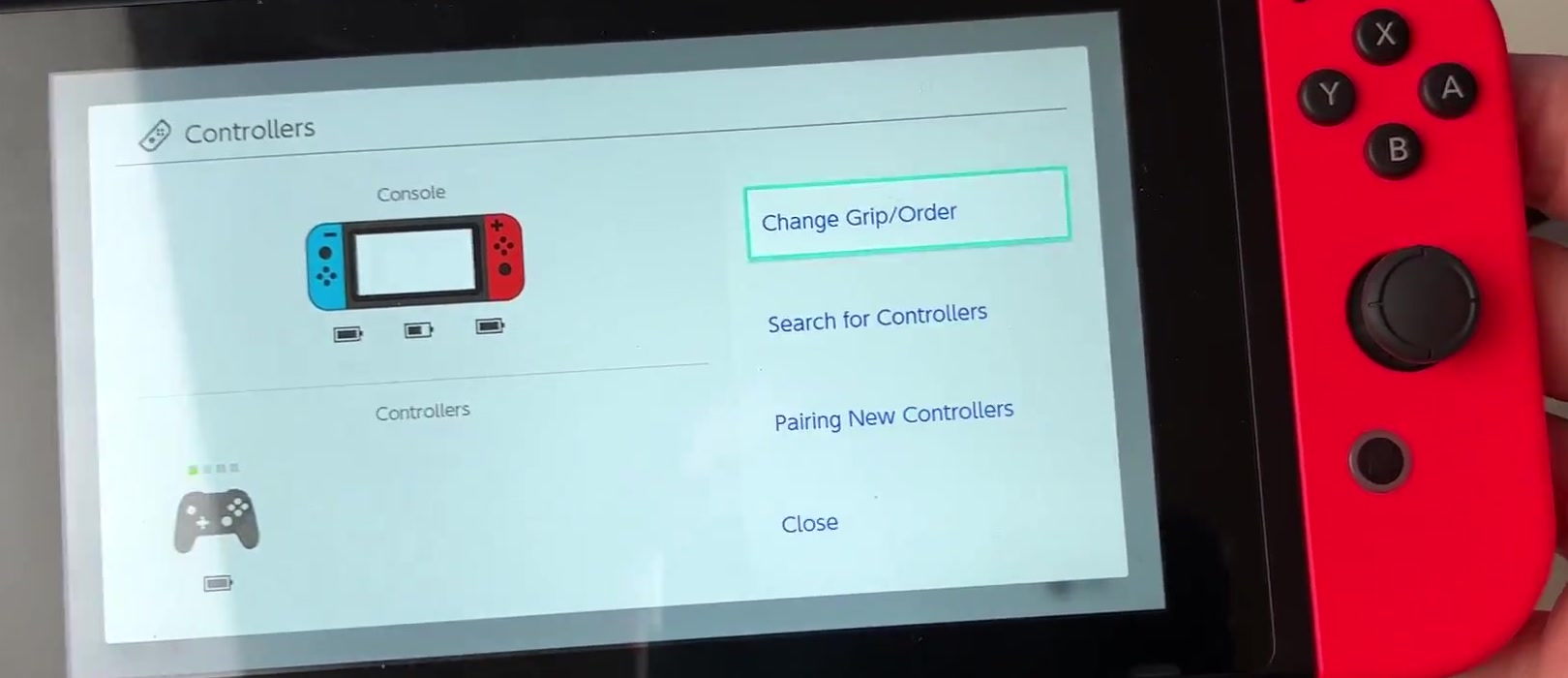
3. On the console, go to the HOME Menu, select Controllers, then Change Grip and Order. If no controller works at all, a Joy-Con slid onto the console's side rails will navigate the menus on a Switch or OLED model.
4. With that screen showing, press and hold SYNC on the controller for at least one second. Once it pairs, the player LED for its number stays lit instead of flashing.
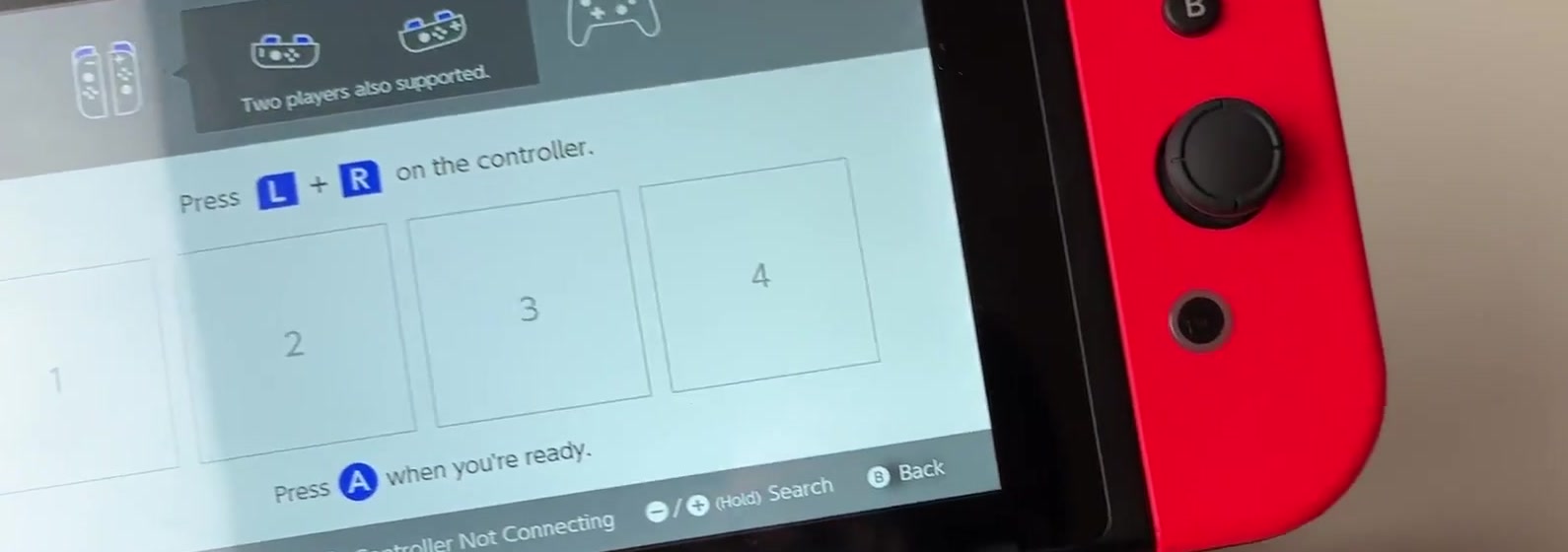
Joy-Con need one extra confirmation, because pairing alone does not tell the console how you intend to hold them. For a two-handed grip, press L and R together (or ZL and ZR). To use a single Joy-Con sideways, press SL and SR on that Joy-Con.
Connect through the dock by USB instead
If wireless pairing will not take, a cable sidesteps it. Put the console in the dock, power it on, and connect the Pro Controller to the dock with its USB charging cable. Pressing any button, such as A, should power the controller on and pair it.
When that fails, Nintendo's order is: press SYNC once and press A again, then try a different USB port on the dock, then a different cable, then a different dock if you have one. Each step rules out a cheaper failure before you suspect the controller.
Two model-specific notes matter here. The Switch 2 Pro Controller works only with a Switch 2, so a mismatched pair will never connect no matter how many times you sync it. And the Switch Lite has no dock — charge the controller from the AC adapter, and pair by cable only through a licensed accessory that accepts the USB charging cable, such as a dual USB playstand.
Clear every pairing and start again
If the controller pairs intermittently, or the console seems confused about which controller is which, wiping the slate is the next move. From the HOME Menu, open System Settings, then Controllers and Sensors, and select Disconnect Controllers. Hold the X button until the on-screen circle completes.
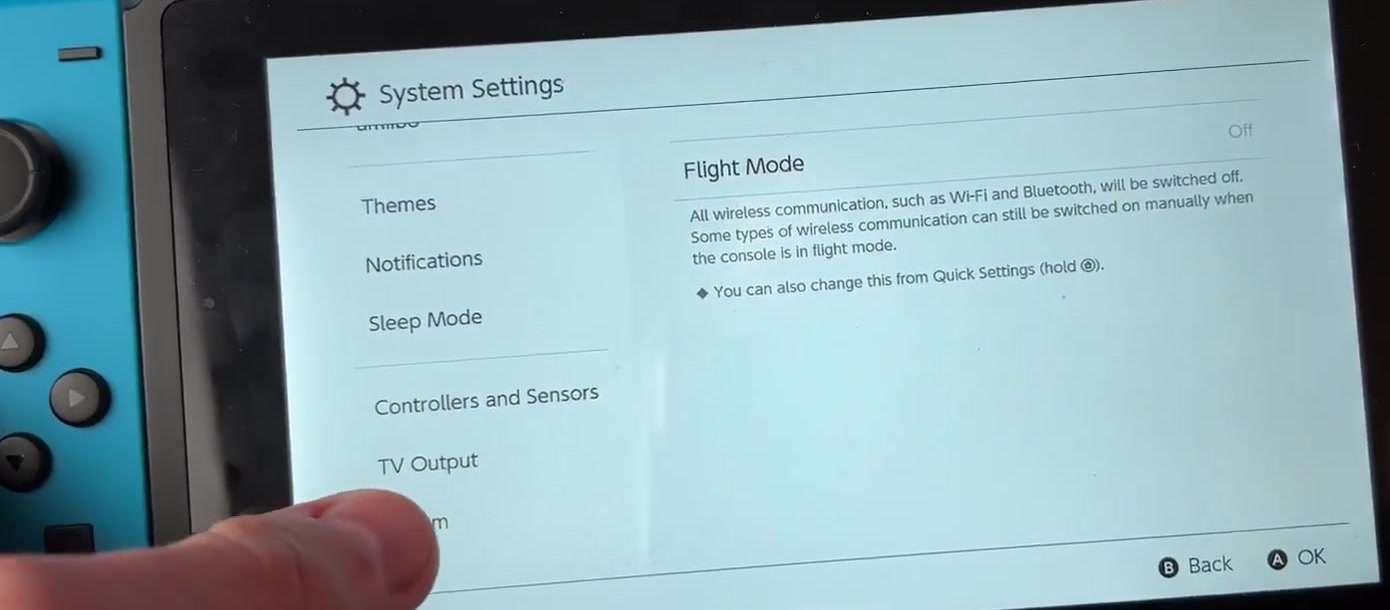
This deletes the pairing information for every wirelessly connected controller, not just the problem one, so expect to pair each of them again afterwards. While you are on this screen, it is worth glancing at Flight Mode: with it on, all wireless communication is switched off, which looks exactly like a controller that refuses to connect.
It is also worth ruling out stale system software. Go to System Settings, scroll to the bottom, select System, then System Update. If there is nothing to install, hold the POWER button for at least three seconds, choose Power Options, and select Restart.
If that didn't work
Work through the wireless environment properly rather than assuming. Move the console off metal shelving or out of a cabinet, switch off a nearby microwave or cordless phone for a few minutes as a test, and take off any unlicensed case or grip on the console or the controllers. These are Nintendo's own suggestions, not folklore, and the metal one in particular catches people with the dock tucked into a media unit. The same interference checks are worth running if a wireless keyboard keeps dropping its connection in the same room.
Check the hardware next. An official Pro Controller carries the model number HAC-013 on the back, beneath the Nintendo logo, in every colour and special edition. If yours shows something else, it is a third-party controller, and the manufacturer rather than Nintendo is the one to contact.
Still not working
If the Switch controller still is not connecting wirelessly and will not pair over USB either, Nintendo's own guidance stops suggesting fixes and says the controller needs service. At that point, contacting Nintendo Support is the step, not another round of syncing.
Before you do, try the controller on a different Switch if one is available. A controller that pairs elsewhere points at the console; one that fails on both points at the controller, and you will be asked either way.