How to Cancel Grammarly Subscription (Web and App Stores)
Grammarly's cancel button sits at the bottom of the Subscription page, behind three retention screens. Here is the full path, plus what to do when Apple or Google took the payment.
Open account.grammarly.com/subscription in a browser, scroll to the bottom of the page and click Cancel Subscription. Grammarly puts two or three retention offers in the way, so keep clicking Continue to cancel until you reach the confirmation. If you signed up inside the iPhone or Android app, the cancel button is in the App Store or Google Play instead, not on Grammarly's site.
Before you cancel your Grammarly subscription, two things are worth settling. The first is timing. Cancelling switches off automatic renewal rather than cutting your plan off on the spot — Grammarly's support page says paid features stay available until the current billing period ends. There is no partial refund for the unused weeks, so cancelling on day two of the month buys you nothing over cancelling on day twenty-eight.
The second is who actually takes your money. Grammarly can only cancel what Grammarly billed. A plan bought through Apple's App Store or Google Play is billed by the store, and the cancellation has to happen there. If you are not sure, start on the web — the Subscription page shows a payment method when Grammarly is the biller.
How to Cancel Grammarly Subscription on the Web
This is the route that works from any browser, on a laptop or a phone. A desktop browser is easier because the modal windows are wide.
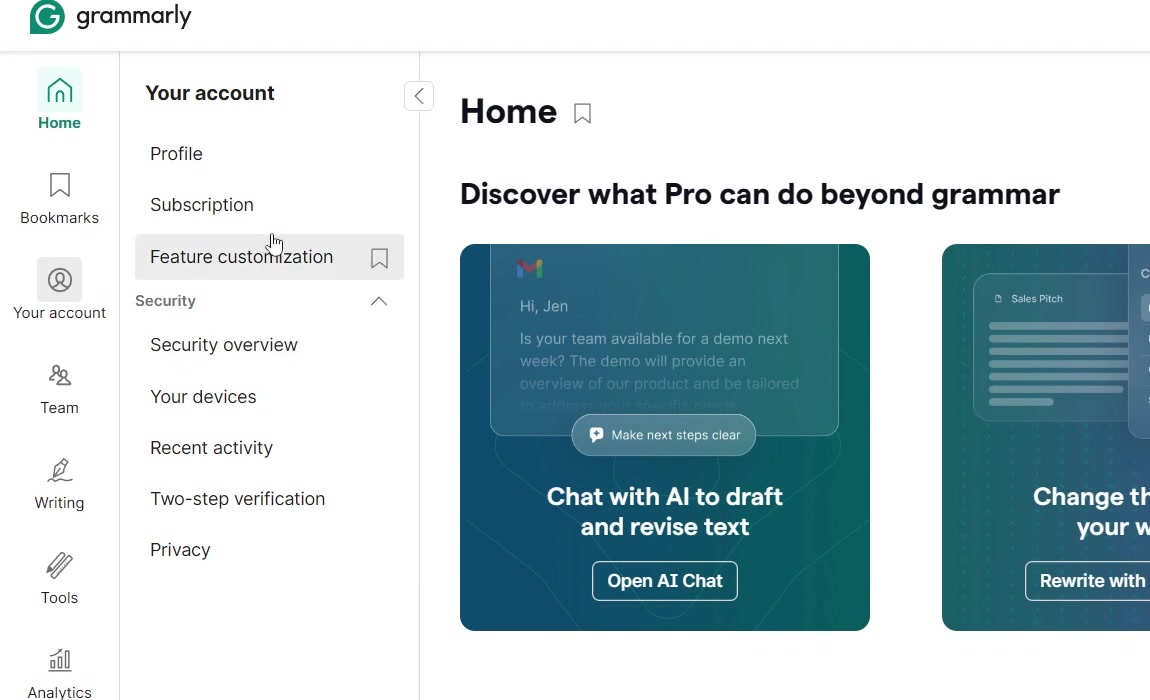
1. Sign in to Grammarly and open your account page. In the left rail, click Your account, then Subscription. You can also go straight to account.grammarly.com/subscription and skip the clicking.
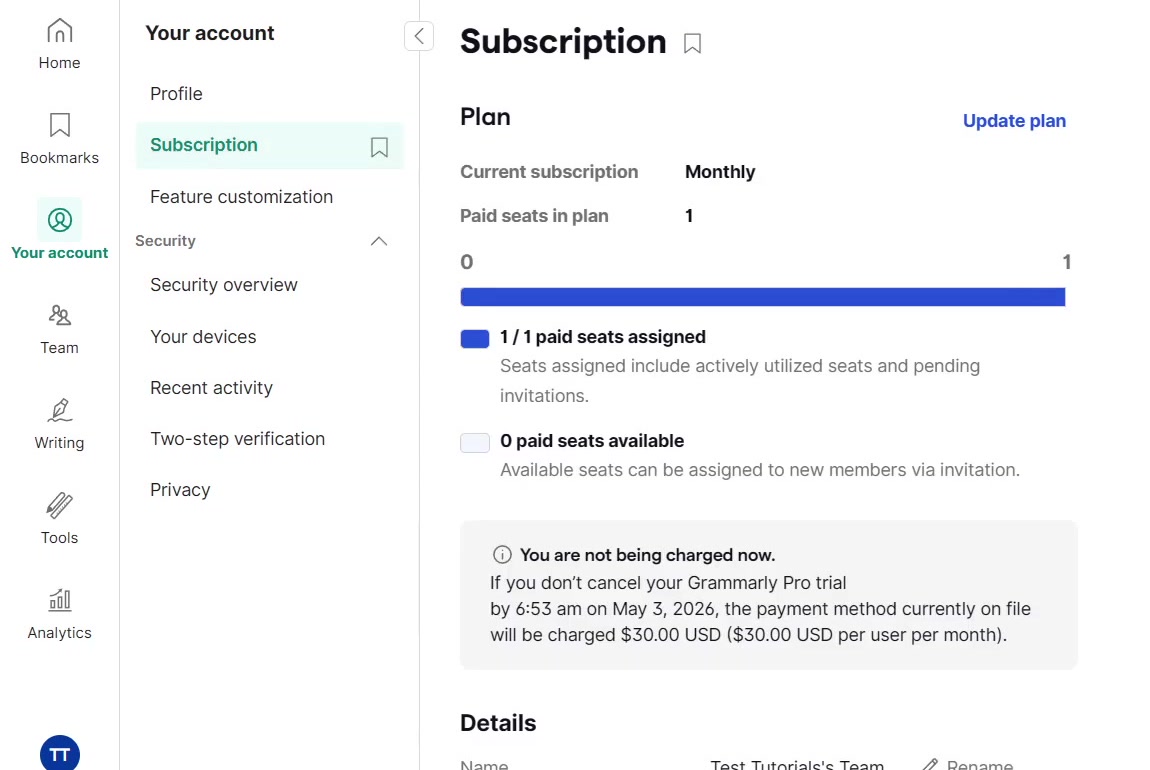
2. The Subscription page opens on your plan details — the plan name, whether you are billed monthly or annually, and how many seats are assigned. Check this before going further, because it tells you what you are giving up and when the next charge lands.
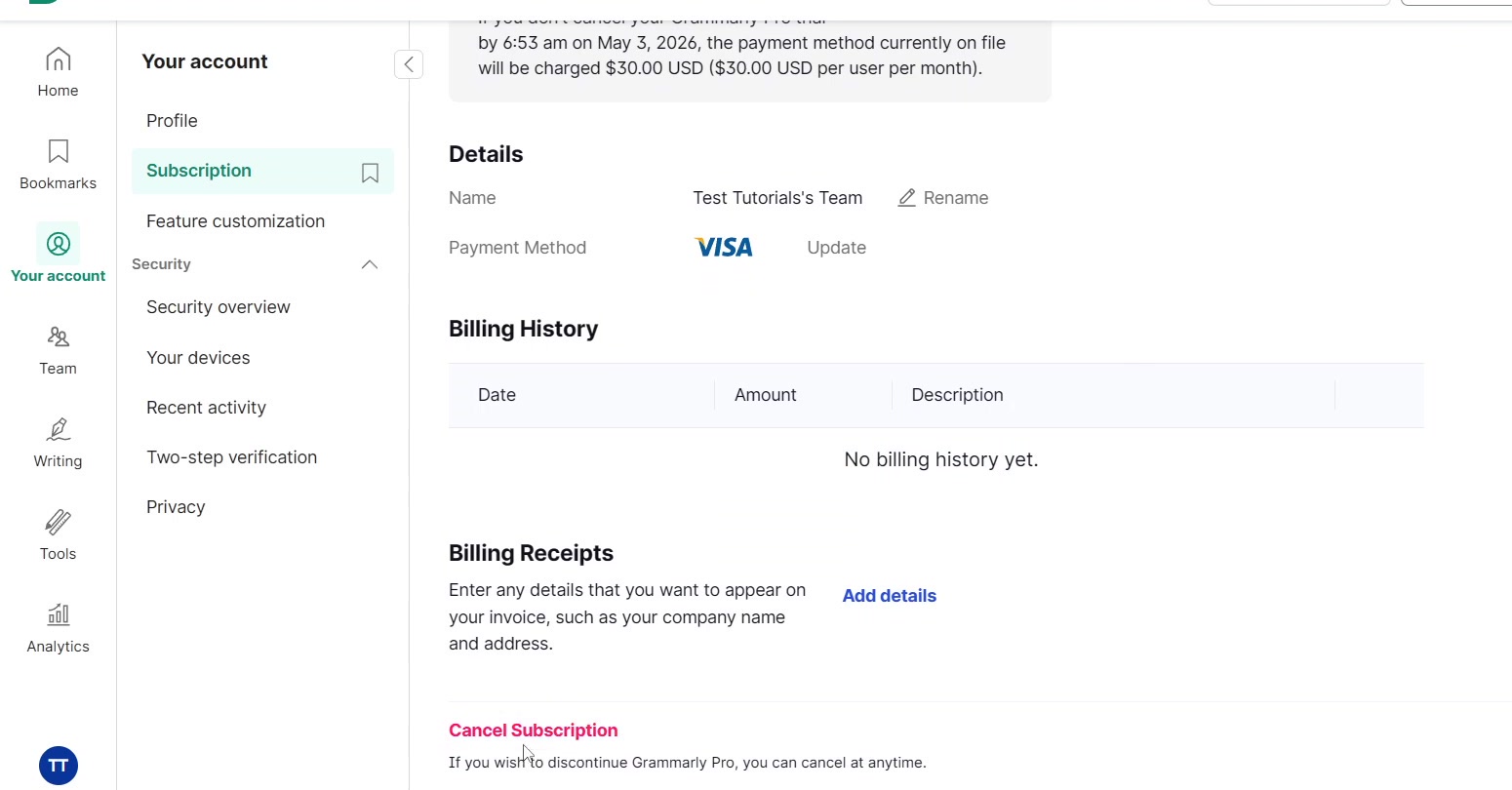
3. Scroll to the very bottom, past Details, Billing History and Billing Receipts. Cancel Subscription is there in red, under a line that reads "If you wish to discontinue Grammarly Pro, you can cancel at anytime." It is a text link, not a button, which is why people miss it.
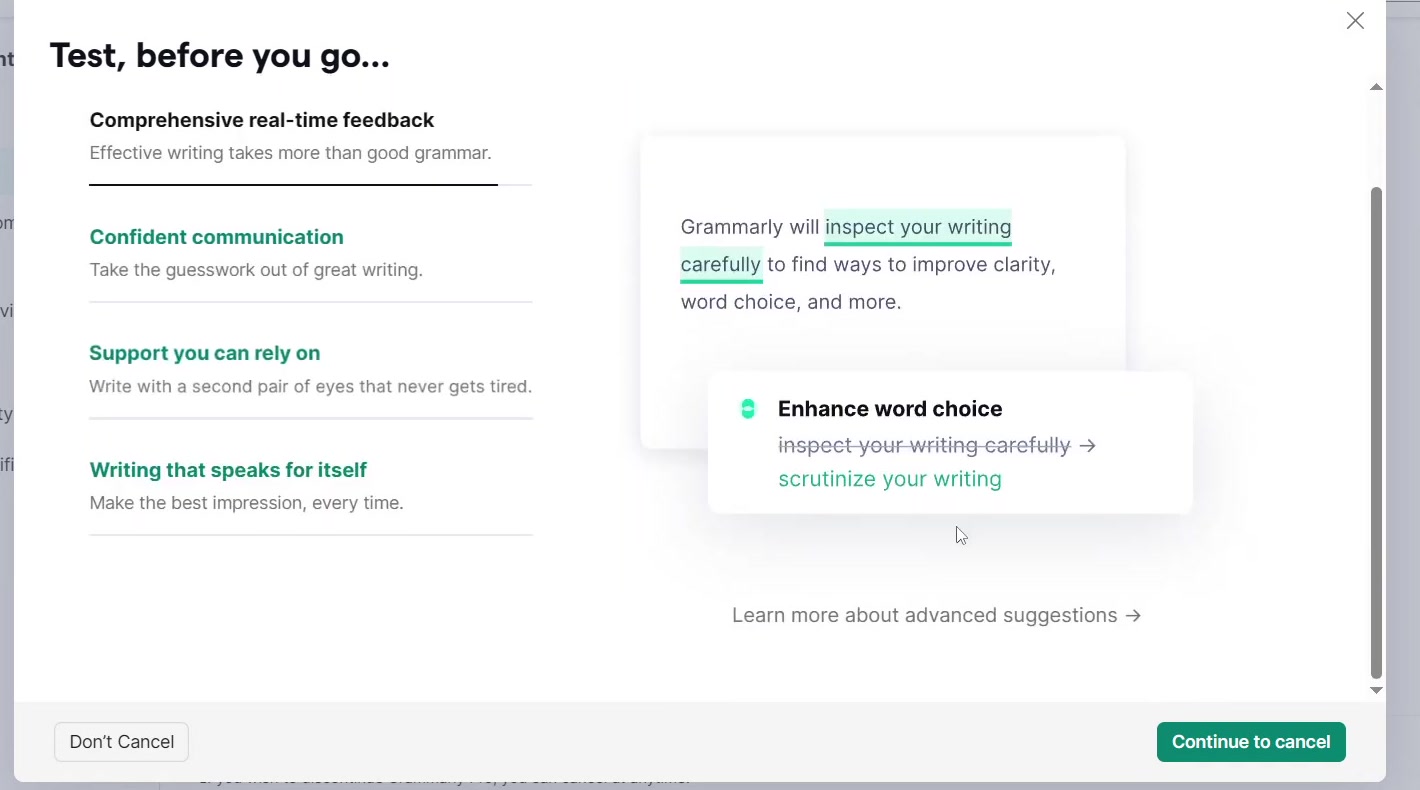
4. Grammarly answers with a screen listing what you lose. Ignore the pitch and click Continue to cancel in the bottom right. Don't Cancel next to it keeps the subscription.
5. A second offer usually follows — on a monthly plan it is Switch plans and save, pushing the annual price. Click Continue to cancel again.
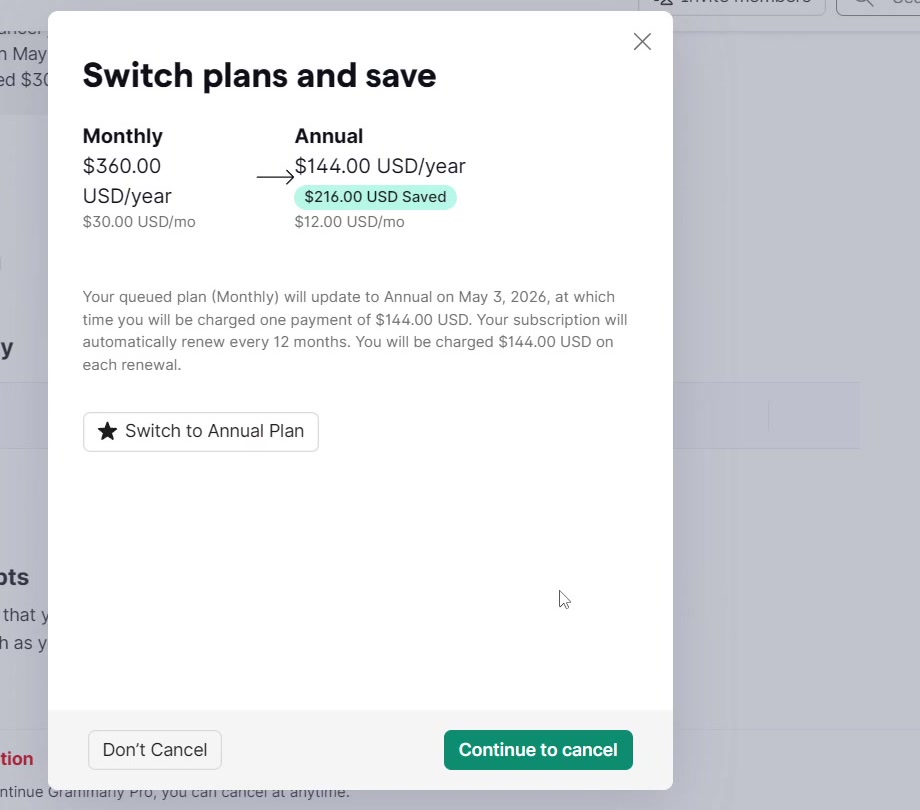
6. Pick a reason from the list and confirm. The Subscription page should then show that the plan will not renew, with the date your access ends. If it still shows an active renewal, reload the page before assuming anything went wrong.
Cancelling when Apple or Google took the payment
If you subscribed through the mobile app, Grammarly's cancel link either will not appear or will not stop the billing. Go to the store instead.
On an iPhone or iPad, open Settings, tap your name at the top, tap Subscriptions, tap Grammarly, then tap Cancel Subscription.
On Android, open the Google Play Store app, tap your profile icon, then Payments & subscriptions, then Subscriptions. Select Grammarly and tap Cancel subscription. Do this at least a day before the renewal date — store billing runs on its own clock.
What cancelling does not do
It does not delete your Grammarly account. Your documents, writing history and sign-in all survive; the account simply drops to the free tier when the paid period ends, with the basic checks still working and the advanced suggestions switched off. Deleting the account is a separate action, and doing it first can make the subscription harder to deal with.
It does not remove the browser extension or the desktop and keyboard apps. Those keep running on the free tier until you uninstall them yourself.
It does not refund you. Grammarly's billing help page only describes refunds for billing errors and charges made in error, which it handles case by case through a support request — it does not publish a general money-back window. Reputable guides disagree on what Grammarly will do beyond that, so treat a refund as something you ask for rather than something you are owed. Where the App Store or Google Play did the billing, the refund request goes to Apple or Google, not to Grammarly.
And on a Business or team plan, it does not quietly affect only you. Cancelling ends the paid seats for everyone on the plan.
Common questions
Will I keep Premium until the end of the month? On a paid plan, yes — access runs to the end of the period you already paid for. A free trial is the exception: the screens shown during cancellation warn that trial access ends right away, so there is a real cost to cancelling a trial on day one rather than day six.
Does uninstalling the app cancel the subscription? No. Removing the extension or deleting the mobile app leaves the billing untouched. This is the single most common way people end up paying for another year.
Can I cancel from the phone app itself? Not from inside Grammarly's own app. Use a mobile browser and the web steps above, or the store route if a store is billing you. A desktop browser is less fiddly either way.
If Cancel Subscription isn't there
A missing cancel link usually means one of three things. You are signed in to a different Grammarly account from the one being billed — check the email on the Profile page against the one on your receipts. The subscription is billed by Apple or Google, so there is nothing for Grammarly to cancel. Or you are on a team plan without admin rights, in which case only the account admin can end it.
If none of those fit and the page still will not cooperate, contact Grammarly support with the receipt for the charge, and cancel through your card issuer only as a last resort — a chargeback can lock the account. Subscriptions elsewhere work much the same way; our walkthrough of how to cancel a Canva subscription follows the same pattern of hunting for a link buried under the billing section.