How to Remove App From Samsung TV (And What Won't Go)
Deleting an app on a Samsung TV takes two menus, but half the apps on the Home screen will not budge. Here is the real path, and what the greyed-out Delete button means.
 By Daniel ShuttleworthOct 5, 2026
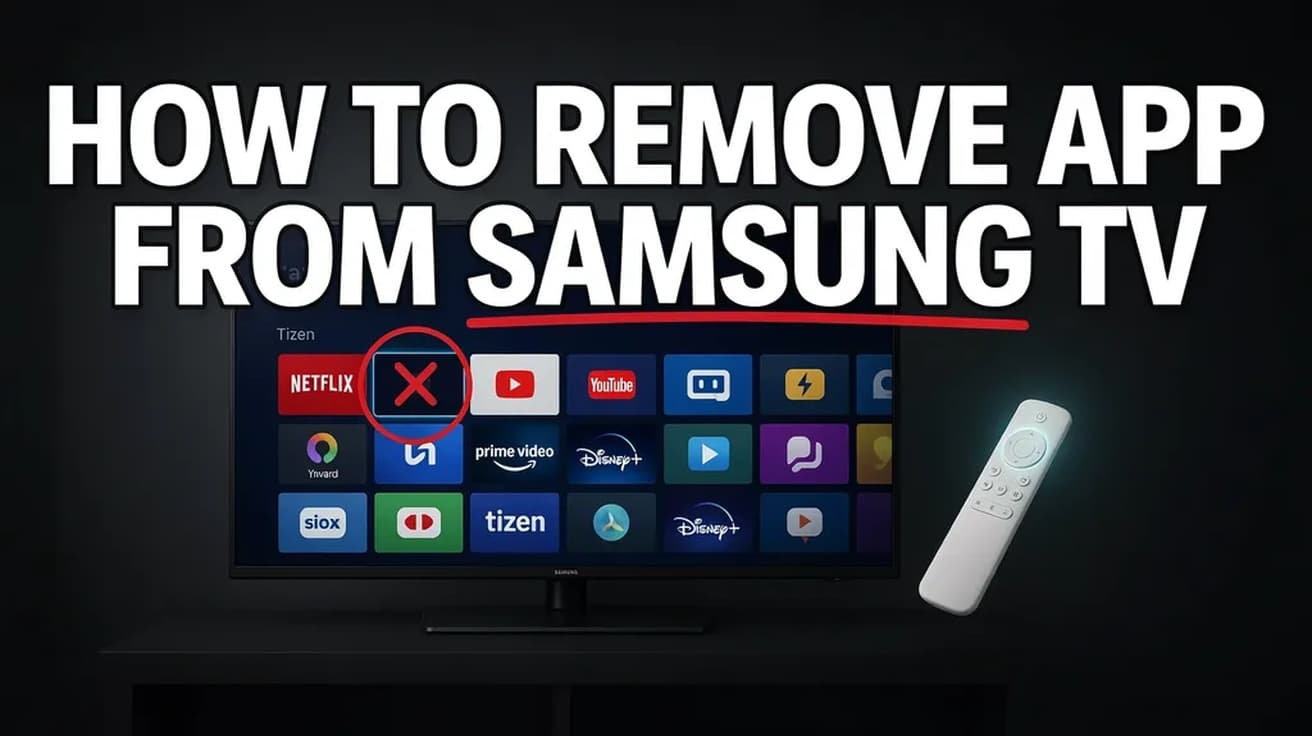
On a current Samsung TV, press Home, open Apps, select Settings on the Apps screen, highlight the app you want gone and choose Delete, then confirm. Pre-installed apps such as Netflix and YouTube have that Delete option greyed out and cannot be removed this way. Deleting an app also erases its data and your sign-in for it.
People looking up how to remove an app from a Samsung TV are usually after one of two things: freeing up storage on a TV that has started stuttering, or tidying a Home row that has filled with apps nobody in the house opens.
Those are not the same job, and Samsung handles them in two different places. It is worth knowing which one you actually want before you start pressing buttons, because one of them is permanent and the other is not.
Where the delete option lives on a Samsung TV
1. Press the Home button on the remote. On a Samsung Smart Remote that is the small house icon.
2. Move along the Home bar and open Apps.
3. On the Apps screen, select Settings. It sits on the Apps screen itself rather than in the TV's main settings menu, which is where most people go looking for it first.
4. Highlight the app you want to remove. A panel of options appears for that app.
5. Choose Delete. A confirmation box appears. Select Delete again.
The app disappears from the Home row and from the Apps list. Samsung's own documentation is blunt about the consequence: if the app is deleted, it is removed from the Home screen and all data related to the app is also deleted. That includes your login, so a deleted streaming app means signing in again from scratch if you ever reinstall it.
The faster route, and older Samsung TVs
If the app is already in front of you, you do not need the Settings screen at all. Highlight the app in the Downloaded Apps area, press and hold the Select button in the middle of the remote's directional pad, and pick Delete from the menu that pops up. Confirm, and you are done. This is the same deletion, reached in two presses instead of five.
Older sets use older menus. On K, M, N and R series TVs, press Home, move to APPS, open Options, pick the app, and select Delete twice. On E, F, H and J series sets, the path runs through Smart Hub: Apps, then My Apps, then the Options icon at the top, then Delete My Apps, then the app, then Delete and Yes.
If none of those three shapes matches what is on your screen, work from the pattern rather than the exact labels: find the list of installed apps, look for an options or settings control attached to that list, and the delete command will be inside it.
What removing an app from a Samsung TV does not do
There is a second, much softer action that looks almost identical, and it is the one that catches people out. Long-pressing an app on the Home row and choosing Remove takes the tile off the Home row only. The app stays installed, keeps its storage, and is still sitting in the Apps list. If your goal was a cleaner Home row, that is the option you want, and it is reversible.
Deleting does not free storage you might be imagining, either. The apps taking up the most space on a Samsung TV are usually the pre-installed ones, and those are the ones you cannot touch.
Samsung states plainly that pre-installed apps cannot be deleted, so the Delete function may be disabled for them. In practice that covers Netflix, Prime Video, YouTube, Disney+ and the Samsung TV Plus apps on most sets. Some third-party guides describe routes around this using the TV's developer mode; Samsung does not document or support any of them, and they are not something to attempt on a TV you rely on.
Common questions
Will deleting an app fix a slow TV? Sometimes, but rarely by much, because the apps you can delete are usually the smaller ones. A TV that has become sluggish across every app is more often helped by a full power cycle: unplug it at the wall for 30 seconds, then plug it back in.
Can I get the app back? Yes. Open Apps, use the search icon, find the app and select Install. You will be signed out, so have the account details to hand. Nothing from the old installation survives.
Does deleting an app cancel the subscription? No. The subscription lives with the streaming service, not with the TV. Removing the app from your Samsung TV does not stop the billing, and you will need to cancel it through the service itself.
If the Delete option isn't there
A greyed-out Delete almost always means the app is pre-installed, and there is no supported way around that. Use Remove to clear it off the Home row instead, which at least gets it out of your way.
If Delete is missing entirely rather than greyed out, check the TV's software is current under Settings, Support, Software Update, since older firmware occasionally hides options the menus otherwise describe. Beyond that, a factory reset clears every app you have added at once, but it also wipes your network settings, picture calibration and every sign-in on the set, so it is a last resort rather than a tidying tool. Samsung Support can confirm what your specific model year allows if you are unsure.
If the locked-down app list is the real problem, the usual way round it is to stop using the TV's own software for streaming. A separate streaming box or stick brings its own app list that you control, and setting up a Roku takes about as long as deleting a handful of apps would.