How to Remove Netflix Profile (TV, Web, and App)
Deleting a Netflix profile takes three taps once you know where Manage Profiles hides on each device. Here is the route on a TV, in a browser and in the app.
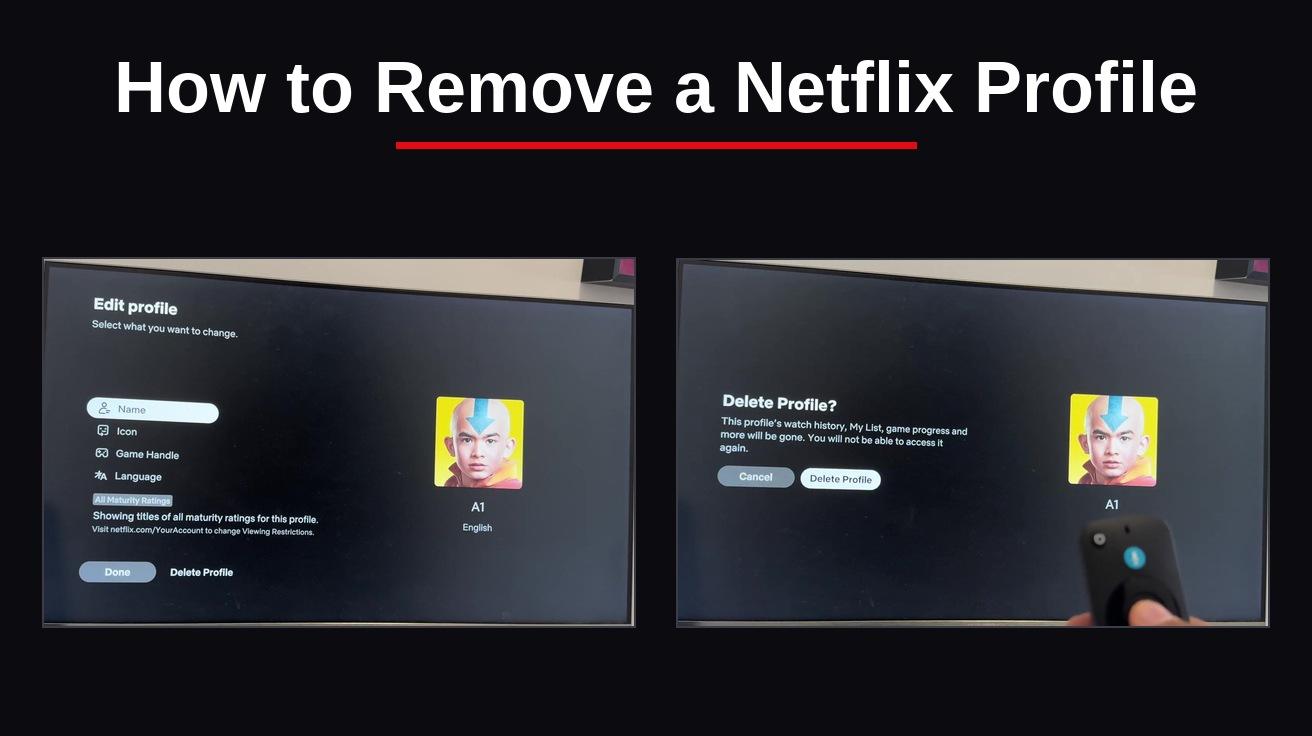
To remove a Netflix profile, open Manage Profiles, highlight the profile you want gone, select the pencil Edit icon, and choose Delete Profile. The main profile on an account cannot be deleted, and the profile you remove takes its viewing history and game saves with it.
Netflix allows up to five profiles on a single account, so a shared plan fills up fast. When a housemate moves out or a test profile is cluttering the picker, the fix is the same on every device: get to Manage Profiles, edit the profile, delete it.
The wording shifts a little between a TV, a browser and the phone app, but the sequence never changes. Below is each route, plus the two rules that stop most people mid-way.
Where the delete option lives
Netflix keeps profile management behind an edit layer rather than on the profile picker itself. On a TV you reach it from the "Choose a Profile" screen, in a browser from netflix.com/profiles/manage, and in the mobile app from the My Netflix tab. From there the steps are identical: select the profile, select the pencil Edit icon, then select Delete Profile.
Two limits apply everywhere. The main profile on the account cannot be deleted at all, and Netflix requires that either the profile you are deleting or the main profile is the one currently active. Extra member accounts are capped at a single profile, so there is nothing to remove on those.
How to remove a Netflix profile on a TV or streaming device
1. Open Netflix and go to the profile selection screen. If a profile is already playing, back out to the "Choose a Profile" list.

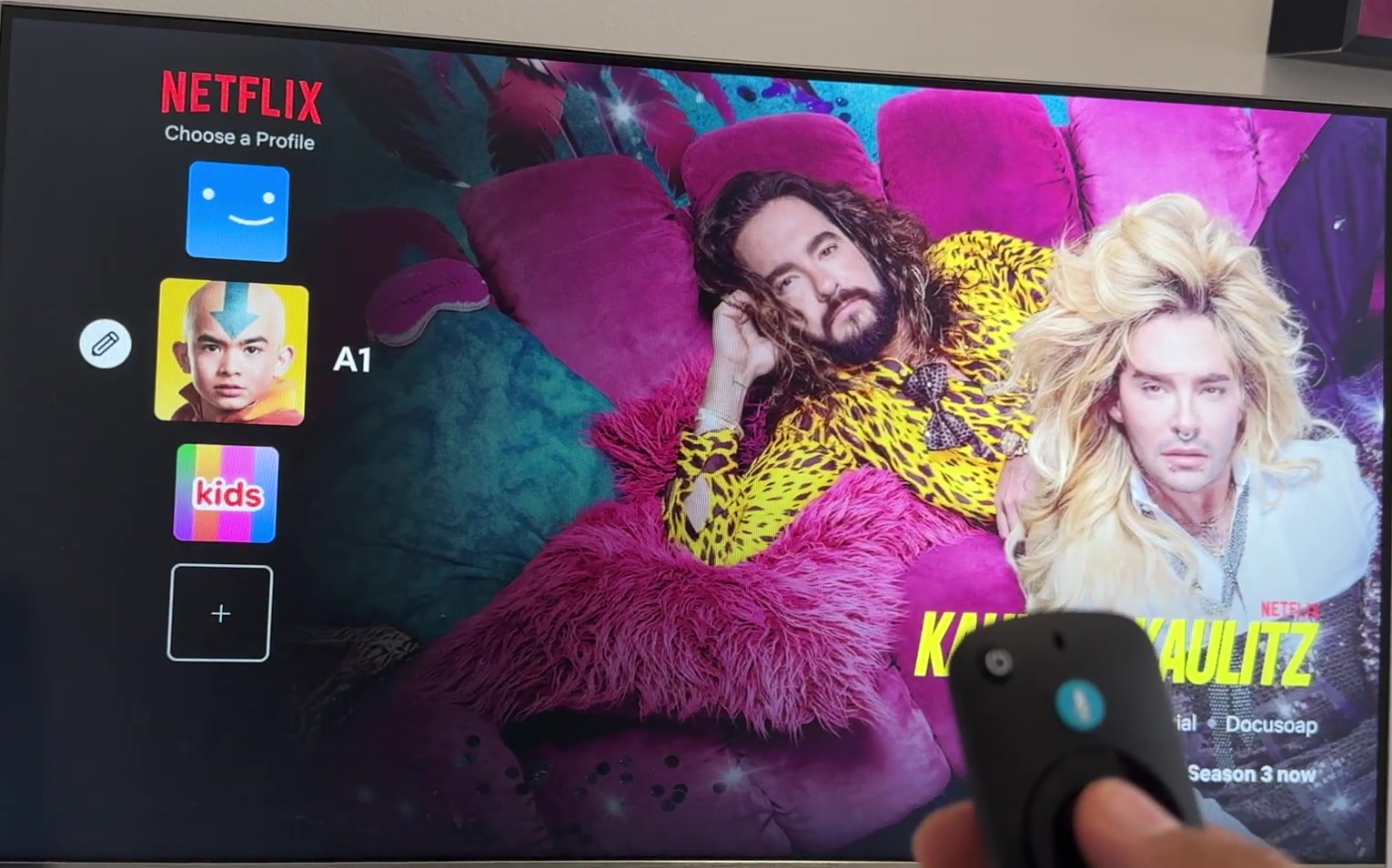
2. Move the highlight onto the profile you want to remove. A small pencil icon appears beside it. Select that icon.
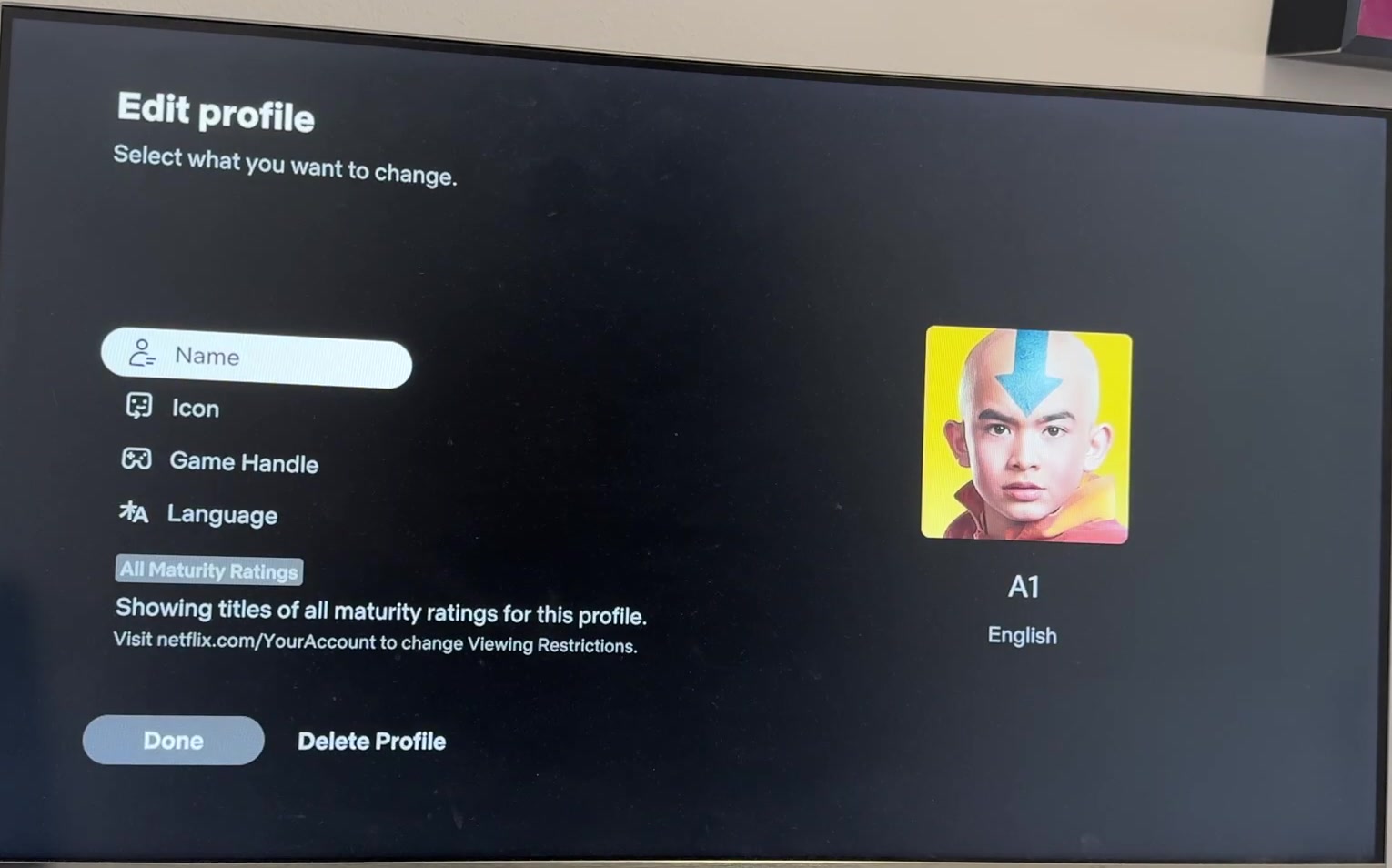
3. The Edit profile screen opens with options for Name, Icon, Game Handle and Language. Select Delete Profile at the bottom, next to Done.
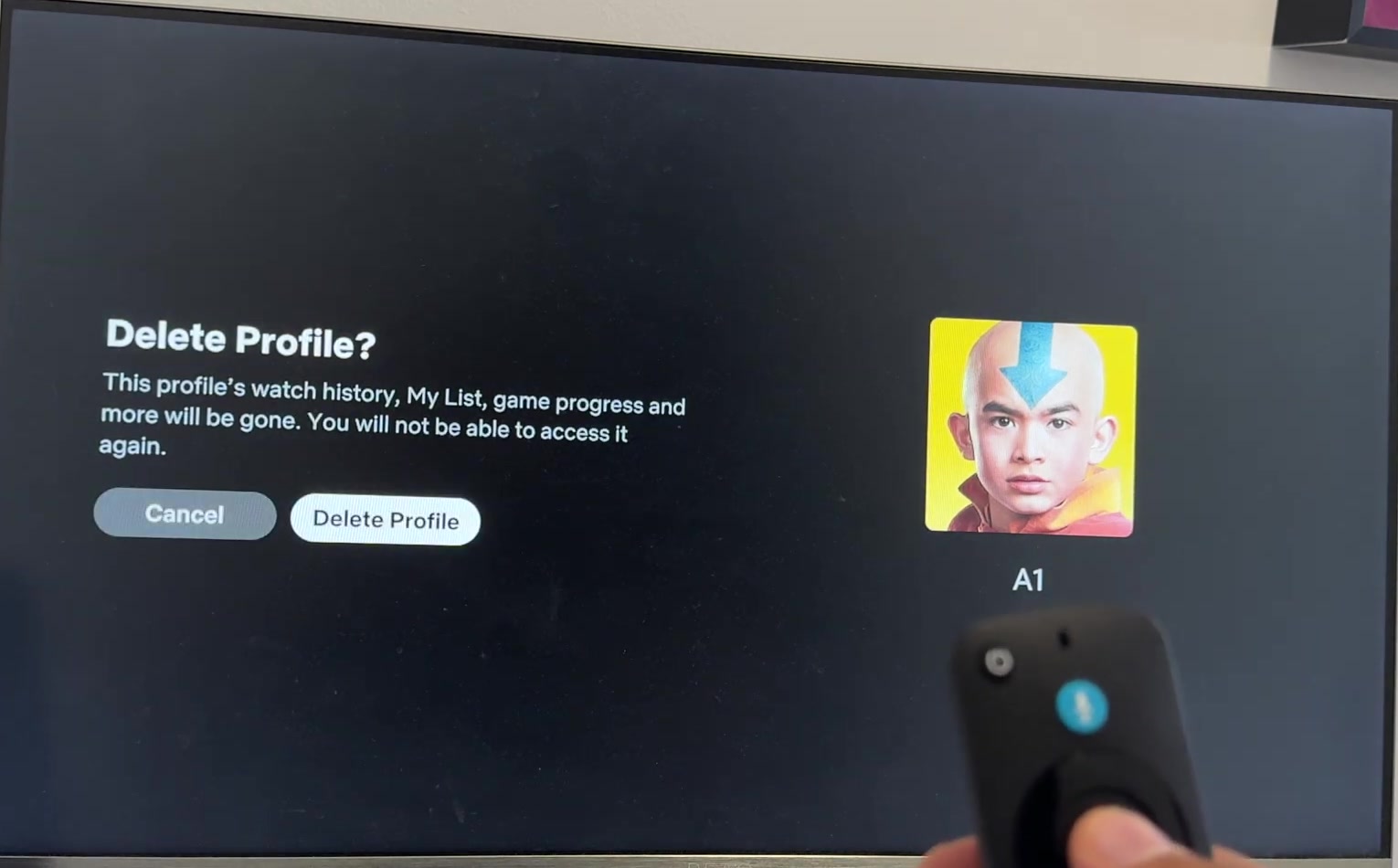
4. A confirmation appears warning that the profile's watch history, My List and game progress will be gone and that you will not be able to access it again. Select Delete Profile a second time to confirm.
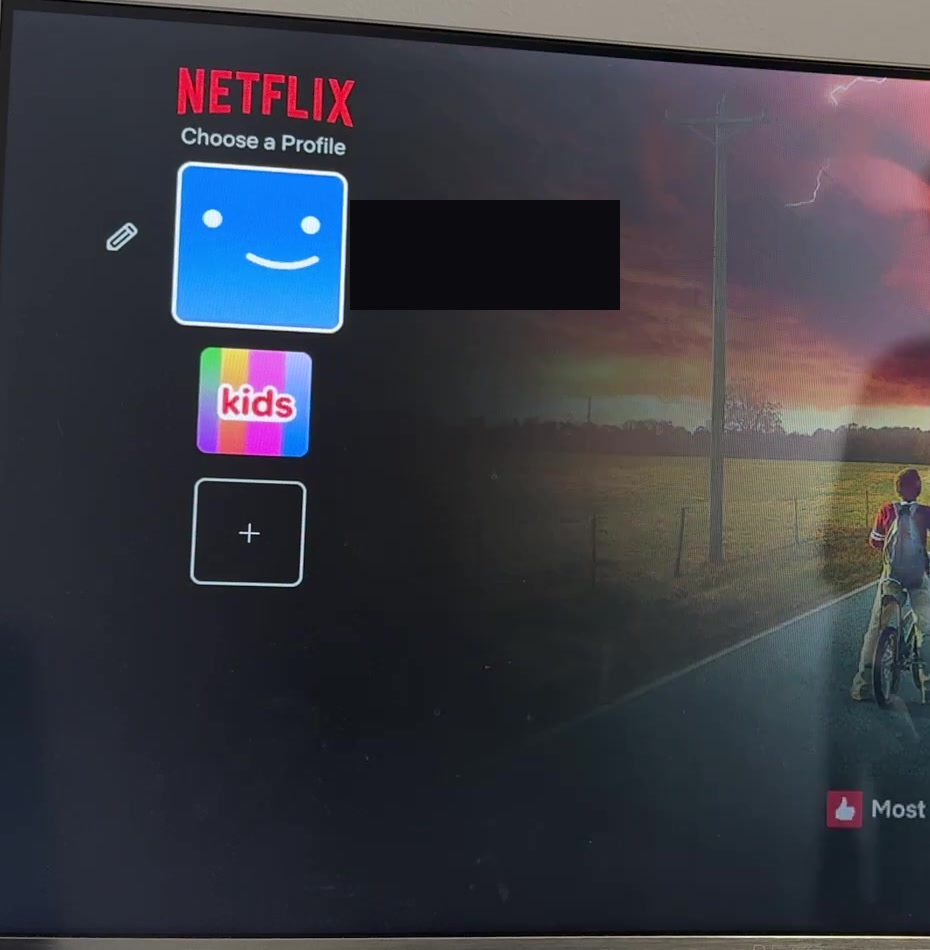
5. You are returned to the profile picker with the profile gone.
Remove a Netflix profile in a web browser
The browser route is the most reliable one, and it is what Netflix points you to when a device will not cooperate.
1. Sign in at netflix.com and go to netflix.com/profiles/manage, or select Manage Profiles from the profile picker.
2. Click the profile you want to remove. The pencil Edit icon sits over its avatar.
3. Scroll to the bottom of the edit panel and click Delete Profile, then confirm.
Because the browser always has the full set of controls, this is the route to use if the option is missing on your TV or set-top box.
Remove a Netflix profile in the iPhone or Android app
1. Open the Netflix app and tap My Netflix in the lower right.
2. Tap the profile name at the top of the screen.
3. Tap Manage Profiles, choose the profile, tap the pencil Edit icon, then tap Delete Profile.
Some app builds also expose an Edit control directly on the "Who's watching" picker, which lands on the same Edit Profile screen. Either path works.
What deleting a profile does not do
Removing a profile is not the same as cancelling anything. Your plan, billing and the rest of the profiles are untouched, and the freed slot can be reused immediately by adding a new profile.
It also does not remove a household member's access to the account in any broader sense. If someone else knows the account password, they can still sign in and create a fresh profile. Changing the password is a separate job.
What does go is specific to that profile: its viewing history and its game saves, according to Netflix's own documentation. Netflix does not document any way to restore a deleted profile, so treat the deletion as final rather than reversible.
Common questions
Why can't I delete my profile? Almost always because it is the main profile on the account, which Netflix does not allow you to delete. The other common cause is that neither the profile being deleted nor the main profile is currently active.
Does a Profile Lock PIN block deletion? Netflix's help page mentions entering the main profile's PIN when adding a profile, but does not list a PIN requirement for deleting one. If you are prompted, use the main profile's PIN.
How many profiles can I have? Five on a standard account. Extra member accounts get one, and cannot create more.
If the Delete Profile option isn't there
First check whether you are looking at the main profile — that one has no delete option by design. If it is a secondary profile and the button still will not appear, switch to the main profile and try again.
Failing that, do it in a browser. Netflix's guidance for devices that cannot delete profiles is to visit netflix.com and run the same steps there. Very old hardware is a separate case: Netflix notes that profiles are not available at all on devices made before 2013.
Once the picker is tidy again, it is worth checking the rest of your setup — our guides to downloading movies on Netflix and setting up a Roku cover the two things people usually fix next.