How to Remove an iPad App (And What Stays Behind)
Touch and hold, tap Remove App, then choose carefully: one option frees up storage and the other only hides the icon. Here is each route on an iPad, in order.
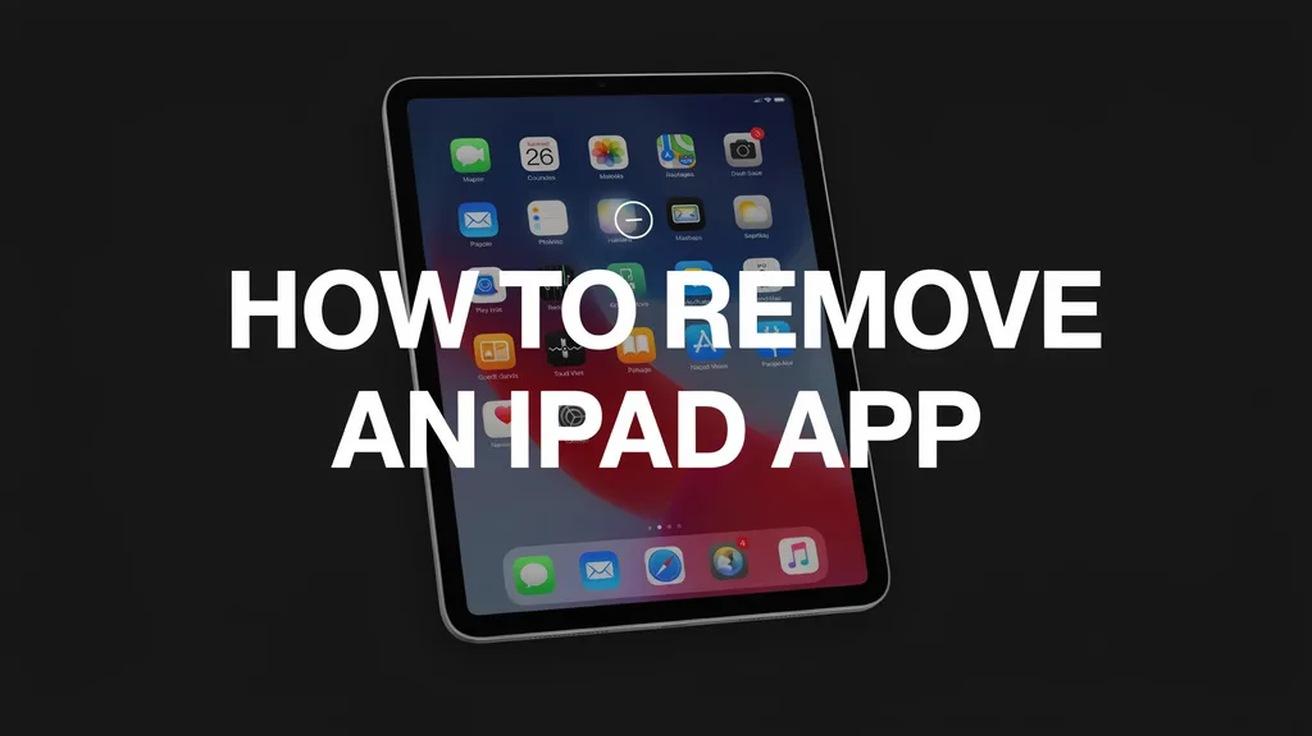
How to remove an iPad app, in short: touch and hold its icon on the Home Screen, tap Remove App, then tap Delete App and confirm with Delete. Tapping Remove from Home Screen instead only hides the icon, and the app stays installed in your App Library. To see how much space each app is using before you decide, open Settings > General > iPad Storage.
The confusing part is that one menu leads to two very different outcomes. One of them frees up storage. The other just tidies your Home Screen and leaves the app exactly where it was.
The steps below are the same on iPadOS 27, released in September 2026, and on iPadOS 26. The wording of the menu has not changed between those releases.
How to Remove an iPad App From the Home Screen
1. Find the app on a Home Screen page. If you cannot see it, swipe down from the middle of the screen and search for it by name.
2. Touch and hold the app icon until a menu opens, then lift your finger.
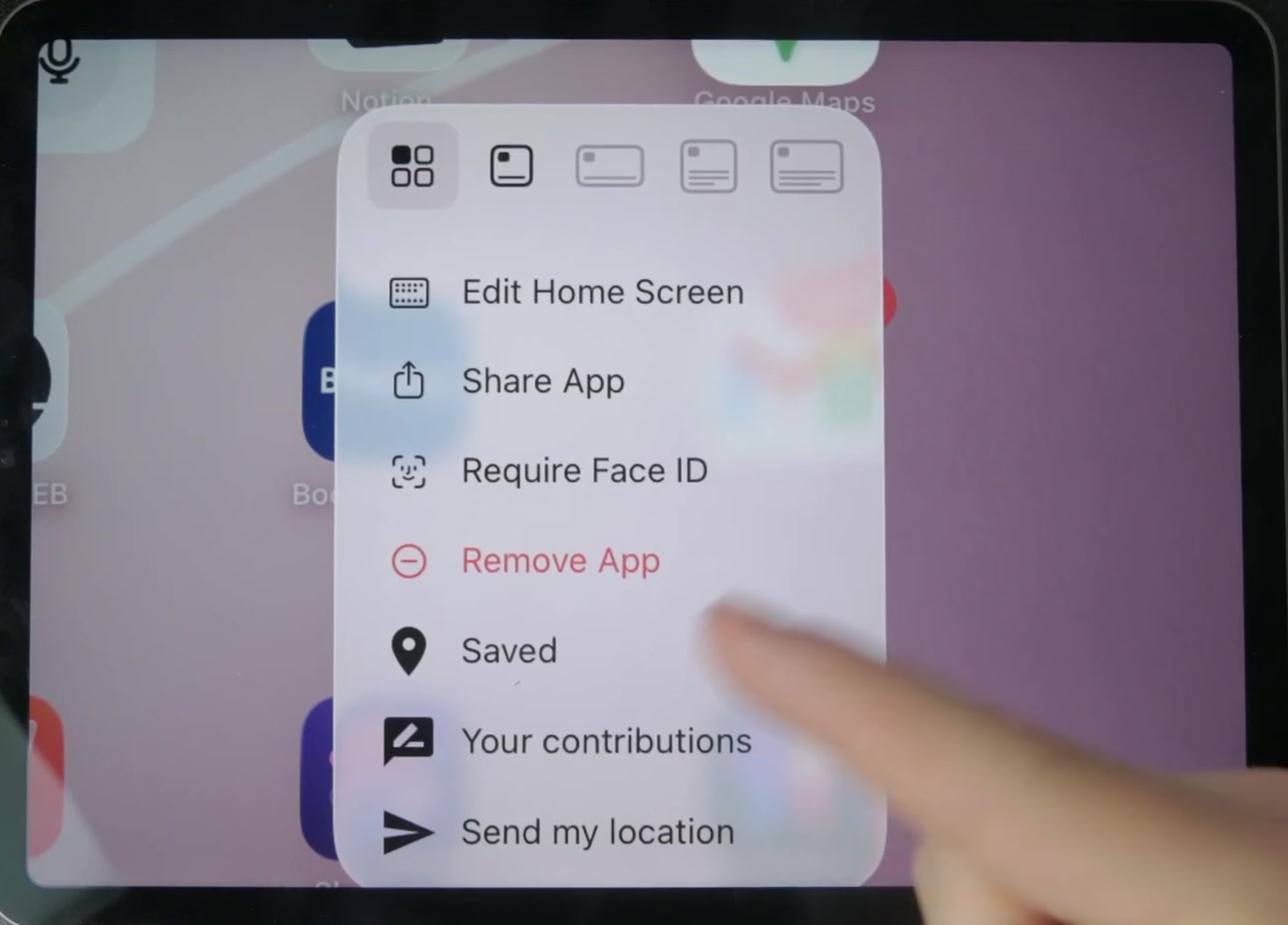
3. Tap Remove App, shown in red towards the bottom of the menu.
4. A panel appears asking what you want to do with the app.
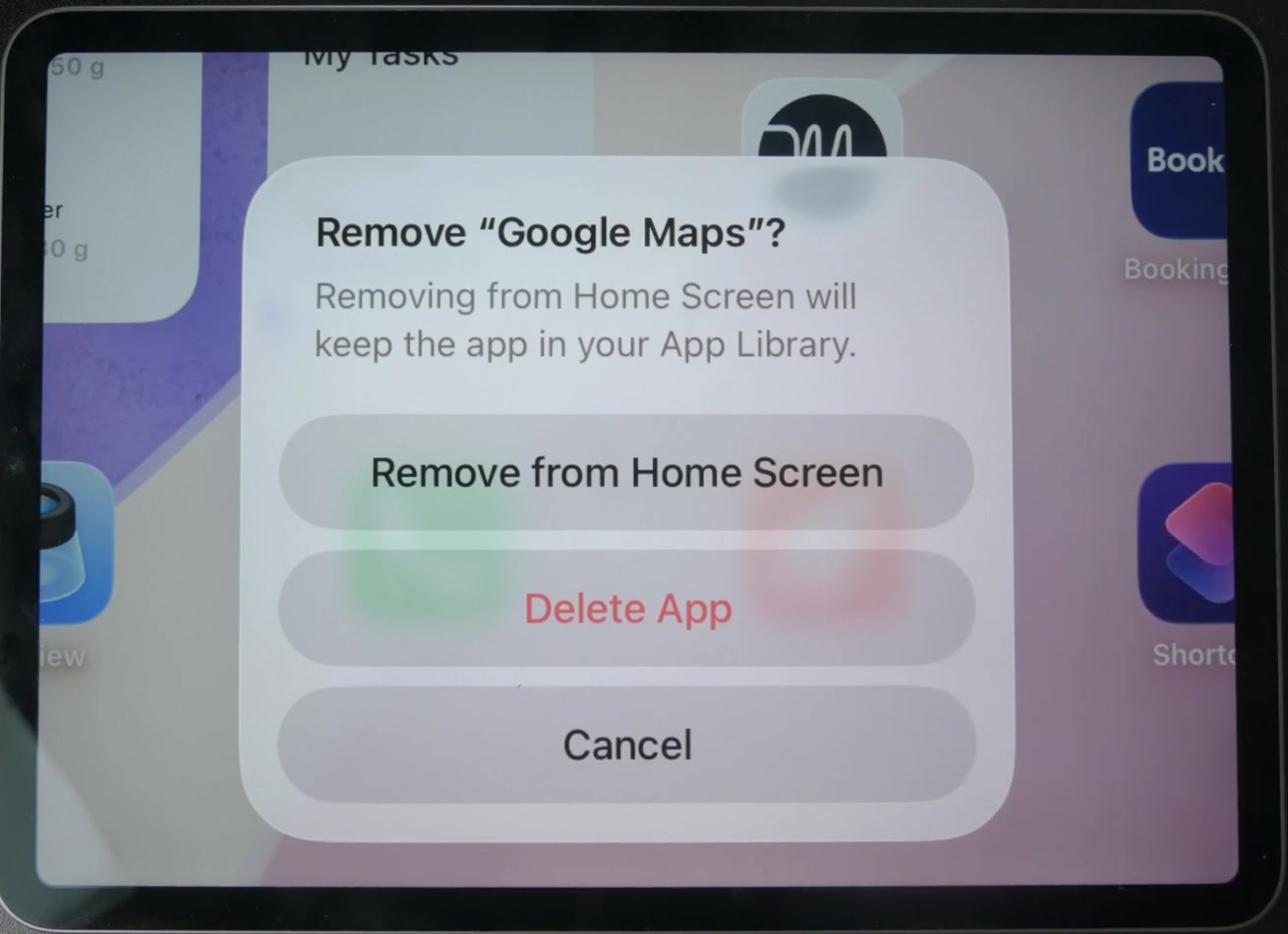
5. Tap Delete App, then tap Delete to confirm.
The icon disappears and the app's data on the iPad goes with it. If you tap Remove from Home Screen at step 5 instead, the icon leaves the Home Screen but the app keeps running, keeps its data, and still appears in the App Library at the far right of your Home Screen pages.
Removing several apps in one pass
Touch and hold an empty part of the Home Screen until the icons start to jiggle. A remove badge appears in the top-left corner of each app you are allowed to delete.
Tap that badge, then tap Delete App and confirm. Repeat for each app, and tap Done at the top of the screen when you have finished.
The Settings route, which shows what you get back
If the point is to free up space, start from Settings rather than the Home Screen. It lists your apps by size, so you can see which ones are worth removing.
1. Open Settings, tap General, then tap iPad Storage.
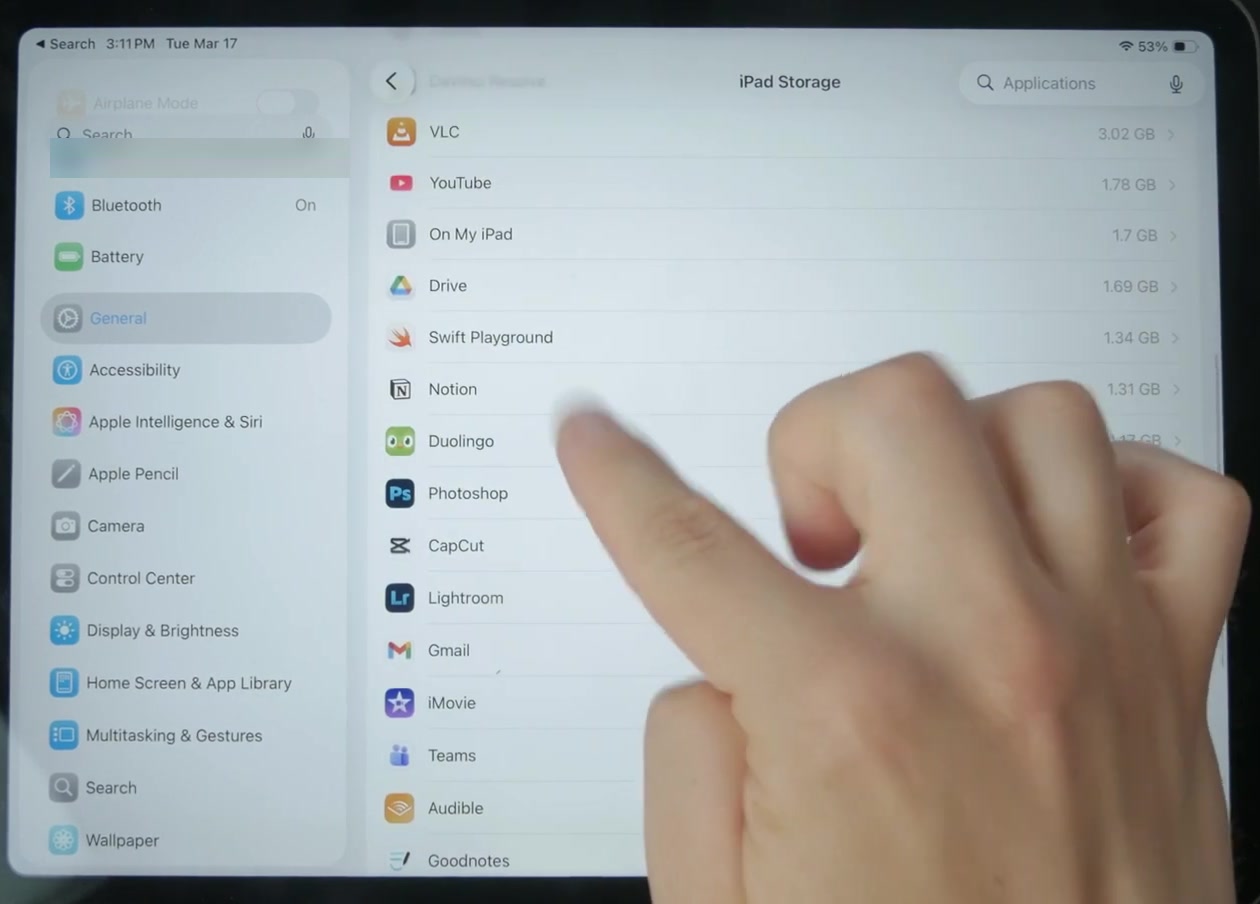
2. Wait a moment for the list to finish calculating, then tap the app you want to remove.
3. Choose Offload App or Delete App, then confirm.
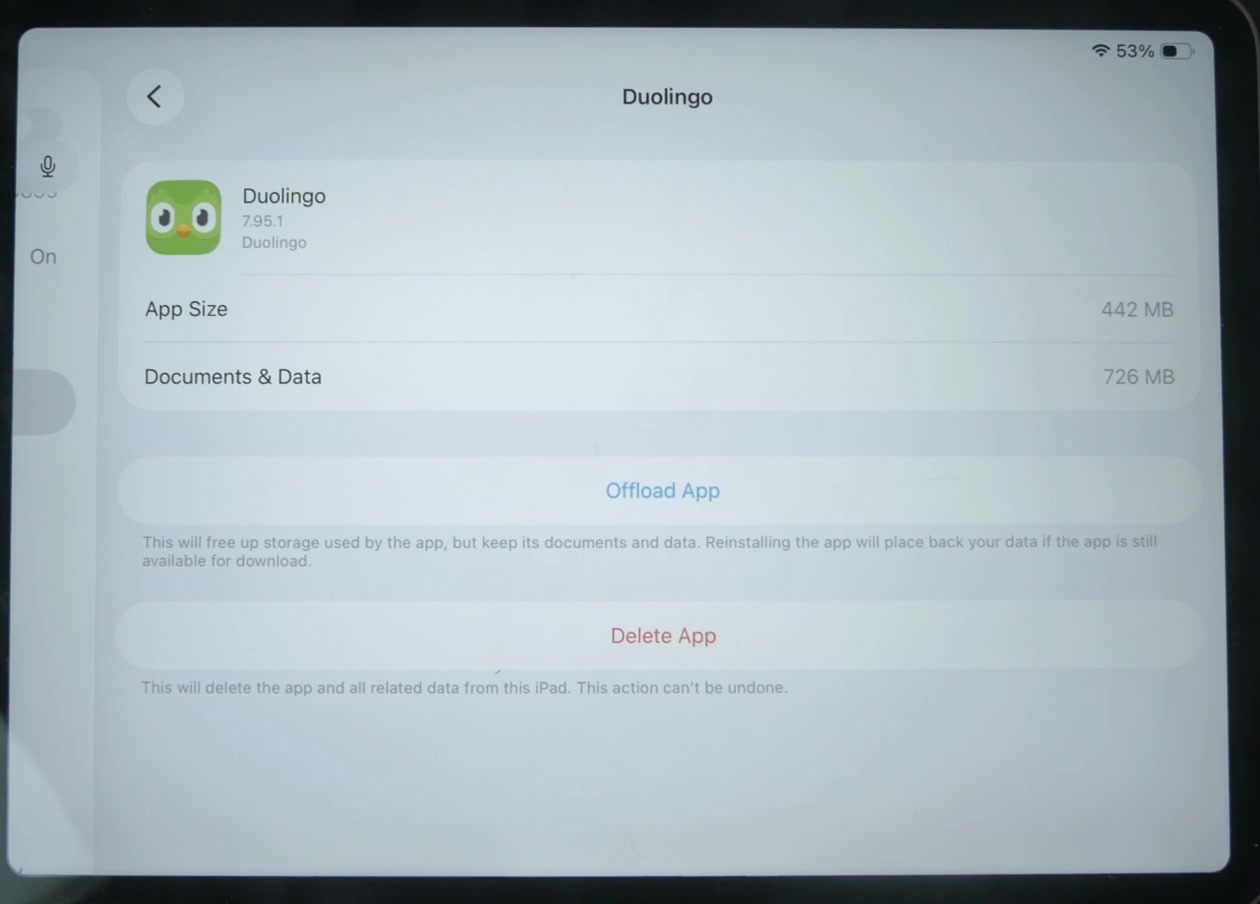
Offload App removes the app itself but keeps its documents and settings. The icon stays on the Home Screen with a small cloud symbol, and tapping it reinstalls the app with your data in place, provided the app is still on the App Store.
Delete App removes the app and its related data from the iPad. Apple's own warning on that screen is blunt about it: the action cannot be undone.
What removing an iPad app does not do
It does not cancel a subscription. Apple is explicit that deleting an app does not automatically cancel in-app subscriptions, so if you were paying for the app, cancel the subscription first in Settings under your Apple Account.
It does not delete anything stored on the app's servers. Removing a cloud-backed app takes the local copy off your iPad, not your account with that service.
It does not cost you anything to change your mind. A deleted app can be downloaded again from the App Store, and you can look up a list of apps you have deleted if you cannot remember the name. Your data will not necessarily come back with it, which is exactly what offloading is for.
Common questions
Can I delete Apple's built-in apps? Some of them. Apps such as Stocks and Weather can be deleted. Core apps such as Settings, Camera and Safari cannot, and their menu offers only Remove from Home Screen.
Where does an app go when I only remove it from the Home Screen? To the App Library. Swipe left past your last Home Screen page to reach it, and use the search bar at the top to find the app by name.
Do the same steps work on an iPhone? Yes, with the same menu names. The only difference is that the Settings entry is called iPhone Storage, and we cover that in our guide to uninstalling apps on an iPhone.
If there is no Delete App option
The usual cause is a Screen Time restriction. Open Settings, tap Screen Time, then Content & Privacy Restrictions, and find the Deleting Apps setting and set it to allow. Apple documents this setting under iTunes & App Store Purchases; some write-ups covering recent iPadOS builds describe reaching it through Apps & Websites and then Restrictions instead, so check both if the first path does not match your screen.
If the iPad is part of a Family Sharing group, the adult who manages Screen Time has to make that change on their own device.
If the iPad is managed by an employer or a school through a mobile device management profile, app deletion may be blocked outright. Apple's guidance in that case is to contact whoever administers the device.