How to Remove a Phone From Google Account (Sign Out)
Signing a device out under Manage all devices is how you remove a phone from your Google account. Here is the exact path, plus what it stops and what it leaves alone.
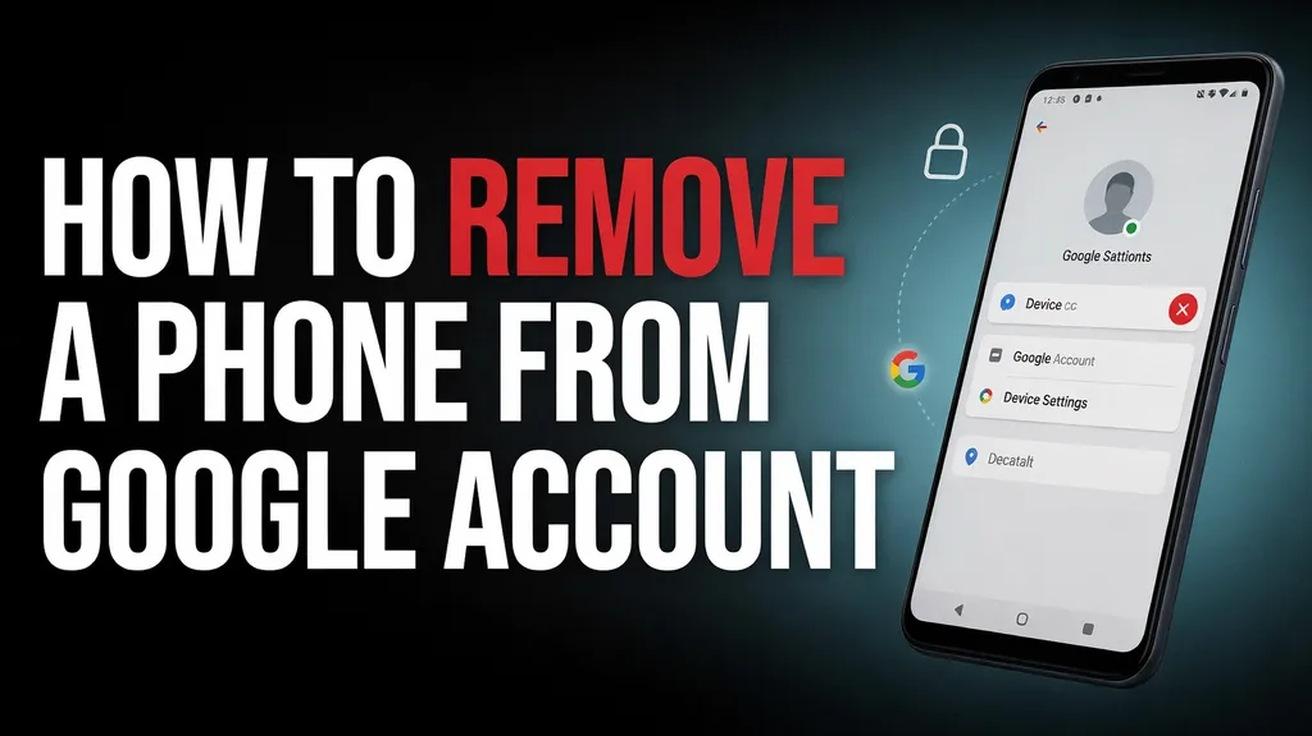
Open myaccount.google.com, choose Security, find the Your devices panel and select Manage all devices. Pick the phone, then choose Sign out. That cuts the phone's access to your account immediately. It does not wipe the handset, and the entry can linger in the list for a while afterwards.
Signing out is how you remove a phone from your Google account. There is no delete button on that list, because it is a record of what has had access rather than a roster of gear you own. An old handset sitting there with a live session can still sync mail and photos, so clearing it is worth the two minutes.
You do not need the phone in your hand. The whole job runs from a browser or from any other device you are already signed in on.
Where to remove a phone from your Google account
1. Go to myaccount.google.com and make sure you are signed in to the right account. If you juggle several, check the avatar in the top corner first.
2. Open Security. On a computer it sits in the left-hand sidebar; on a phone browser it is a tab across the top. Google's own help page currently labels this section Security & sign-in, and the sidebar often reads simply Security. Both lead to the same place.
3. Scroll to Your devices and select Manage all devices. You now get the full list: everything currently signed in, plus anything that was signed in during the last few weeks.
4. Select the phone you want to remove. The detail view shows the last time that device talked to Google, a rough location and the browsers or apps attached to the session.
5. Choose Sign out, then confirm. Some layouts put this behind a three-dot menu on the device card rather than inside the detail view.
One catch that trips people up: a single physical phone can appear as several sessions. Each new sign-in, each separate app that was granted account access, each browser can create its own entry. If you see the same model listed three times, sign out of all three. One left behind means the phone still has a way in.
Faster routes and platform variants
On an Android phone you can get there without typing a URL. Open Settings, scroll to Google, tap Manage your Google Account, then move along to the Security tab and down to Your devices. Older write-ups describe a menu icon at the bottom of that screen; current Android builds use a row of tabs instead, so look across the top if the menu is not where you expect.
On an iPhone or iPad, use the Gmail or Google app's account screen, or just load myaccount.google.com in Safari. The web layout is identical to the desktop one.
If the phone is still in your hands and you are passing it on, do it the other way round: remove the account on the device itself, then factory reset. Google's guidance for selling or giving a device away is to take the account off first and reset afterwards, rather than relying on a remote sign-out. If the handset is locked and you cannot get in to do that, our guide to unlocking an Android phone without the password covers the recovery routes for a device you own.
What removing a phone from your Google account does not do
It does not wipe the phone. Signing out ends the session; the handset stops syncing new data and can no longer make changes to your account. Google's documentation does not say what happens to data already downloaded onto the device, so treat a remote sign-out as cutting off the tap rather than emptying the bucket. For a phone you have actually lost, a reset through Find My Device is a separate action.
It does not always make the entry disappear. Signed-out devices stay in the list with a "Signed out" label. Google also notes that a device can still show up after a factory reset. Neither means the sign-out failed.
It does not clear the Google Play device list. This is the one most people conflate. Play keeps its own history of devices you have used, and you cannot fully delete an entry there. What you can do is hide it: open play.google.com, click your profile icon, choose Library & devices, open the Devices tab, and switch off Show in menus for the old handset. Hidden devices stop appearing when you install an app from the web. The same screen is where you rename a device under Nickname, which is the quickest way to tell three identical "Pixel" entries apart.
It does not uninstall anything. If you still have the phone and the real goal is clearing it out, removing applications from Android is a different job done on the device.
Common questions
Why does the timestamp look wrong? The time shown is the last communication between that device and Google, not the last time a person used it. Background syncing counts, so a phone in a drawer can look more recently active than it was.
I do not recognise a device in the list. Sign it out of your Google account, then change your password. Before assuming the worst, check the innocent explanations Google lists: a device you recently set up, a shared or public computer you used, or a location that looks odd because of travel or a mobile network's routing.
Will the other person be notified? Google's device-access documentation does not say whether anyone holding the phone sees a notice when you sign it out. What is certain is that the account stops working on it, which is visible soon enough to whoever picks it up.
If the Sign out option isn't there
Check you are looking at a device rather than a grouped session header; the sign-out control lives one level in. If the Google account is managed by a workplace or school, an administrator can restrict what you change yourself, and the route then runs through whoever runs that Workspace. And if the entry is the device you are reading this on, Google will not offer to sign you out of the session you are currently using. Switch to another device, or sign out normally first, then revisit the list.