How to Disconnect Apple Watch From Your iPhone
watchOS has no one-tap Disconnect button. Here is how to cut the Bluetooth, Wi-Fi and cellular links between an Apple Watch and its paired iPhone, and what stays connected anyway.
To disconnect an Apple Watch from your iPhone, press the side button to open Control Center and tap the Airplane Mode button. Airplane Mode leaves Bluetooth switched on by default, so for a full disconnect open Settings then Airplane Mode on the watch first and turn Bluetooth off.
Apple never built a one-tap Disconnect button into watchOS. The iPhone icon in Control Center pings your phone rather than cutting it loose, and the red disconnected symbol is a status indicator, not a switch. So how to disconnect your Apple Watch really comes down to switching off the radios the two devices talk over.
Which radio matters depends on how far apart they are. Apple documents that the watch uses Bluetooth when the iPhone is near, falls back to Wi-Fi when Bluetooth is unavailable, and on GPS + Cellular models falls back to cellular after that. Cut one and the connection often survives on another.
How to disconnect Apple Watch from iPhone in Control Center
1. Press the side button, the flat button below the Digital Crown, to open Control Center. On watchOS 9 and earlier, touch and hold the bottom of the screen, then swipe up.
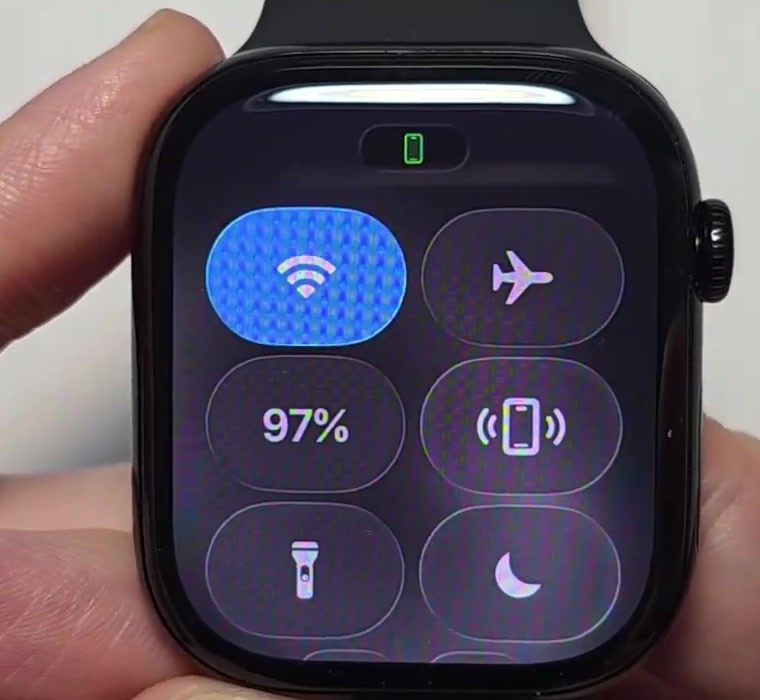
2. Tap the Airplane Mode button. It turns orange and the label at the top of the screen reads Airplane Mode: On.
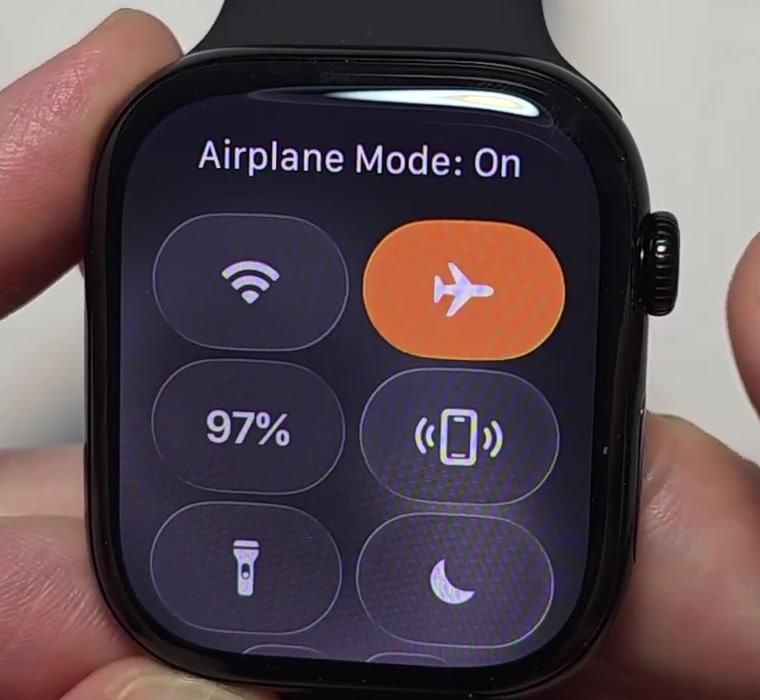
3. Press the Digital Crown to go back to the watch face. A small orange plane sits in the status area whenever Airplane Mode is running.
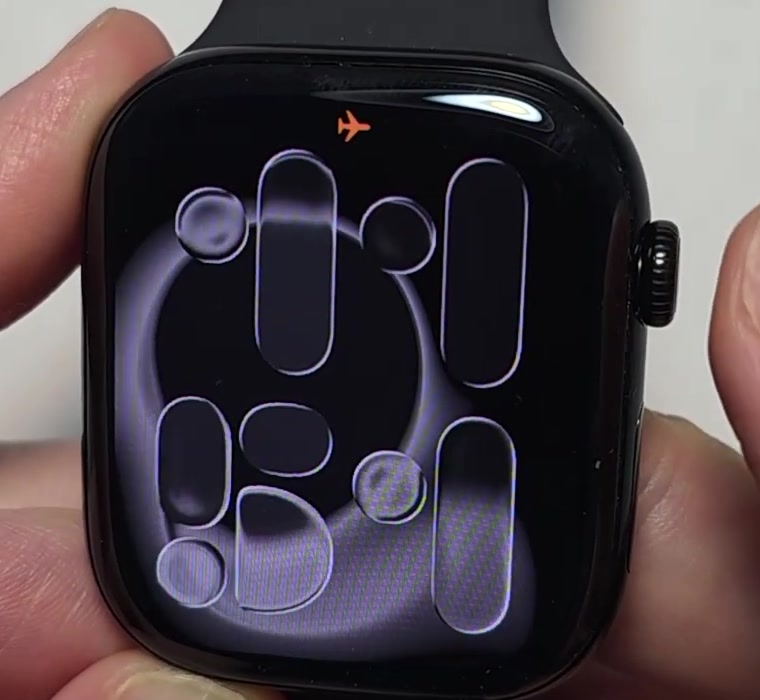
That is how to disconnect Apple Watch from Wi-Fi and cellular. It does not break the Bluetooth link, which is the one carrying your notifications when the phone is in the same room.
Turn Bluetooth off so the disconnect actually holds
Apple's default is deliberate. Turning on Airplane Mode disables Wi-Fi and cellular but keeps Bluetooth on, so paired headphones keep playing. You only need to change this once; the setting sticks.
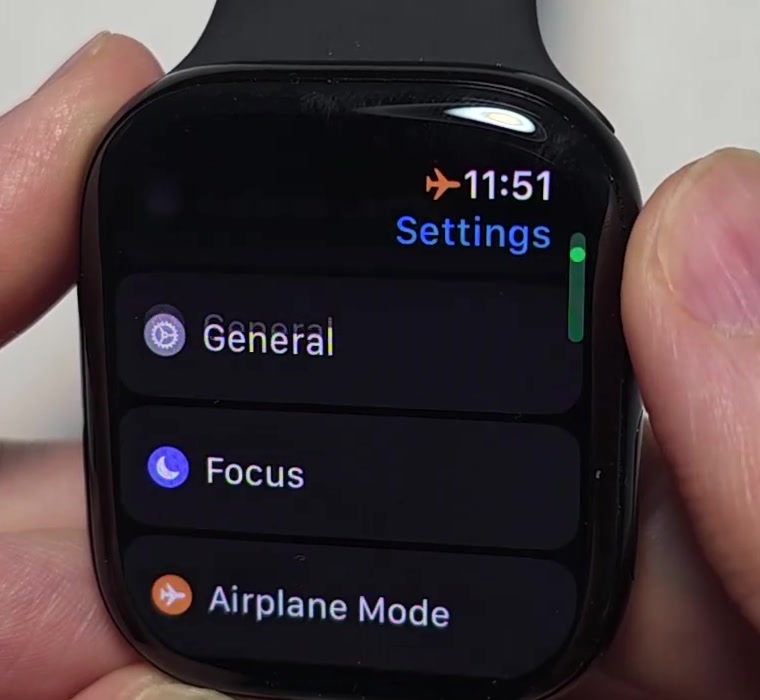
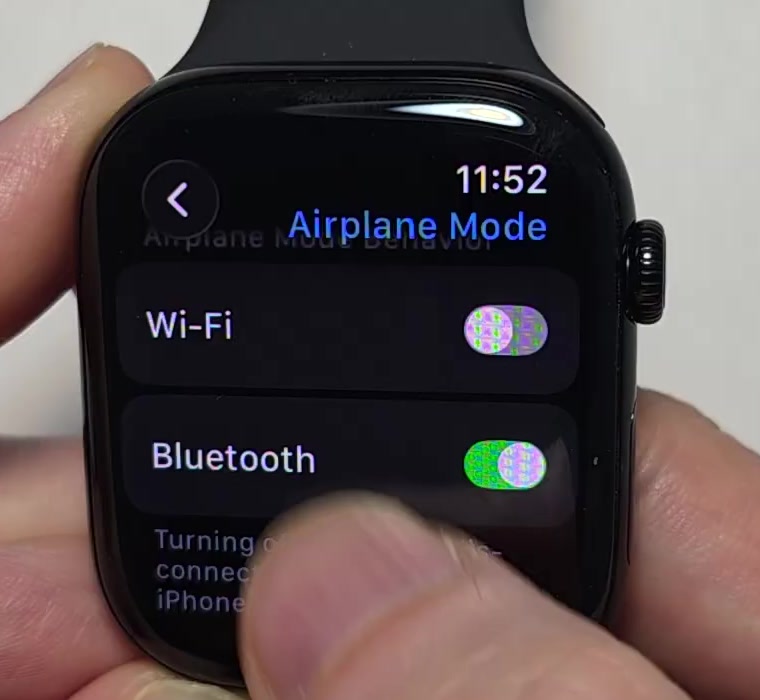
1. Press the Digital Crown, open the Settings app, and scroll down to Airplane Mode.
2. Under Airplane Mode Behavior you get separate Wi-Fi and Bluetooth switches. watchOS spells the consequence out in the small print: turning off Bluetooth disconnects Apple Watch from your iPhone.
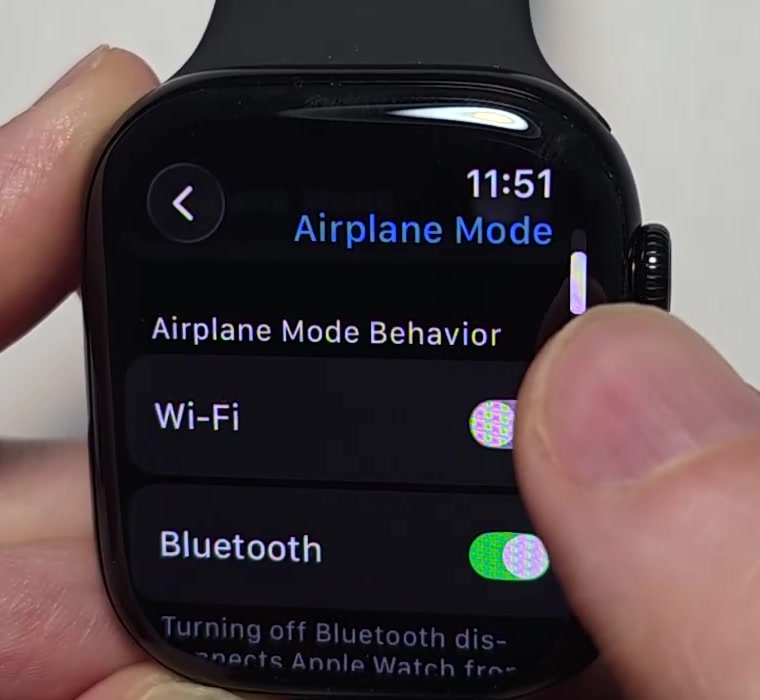
3. Tap the Bluetooth switch off. From here on, turning on Airplane Mode drops Bluetooth with everything else.
Faster routes, and where models differ
Siri handles the quick version. Raise your wrist and say "Turn on Airplane Mode" and the watch does the same thing the Control Center button does, Bluetooth setting included.
If you only want the watch off Wi-Fi, Control Center has a dedicated Wi-Fi button. Tapping it dims the icon and drops the current network. Apple notes one real limitation here: only GPS + Cellular models can disconnect from Wi-Fi networks this way. On a GPS-only watch, Airplane Mode is your route.
The Wi-Fi disconnect is also stubborn about coming back. Apple lists four things that make the watch rejoin the network you dropped: turning Wi-Fi on again in Control Center, moving to a new location, 5:00 a.m. local time, or restarting the watch.
You can also drive this from the phone. In the Watch app on your iPhone, tap My Watch, General, then Airplane Mode, and turn on Mirror iPhone. Switch the phone to Airplane Mode and the watch follows, as long as the two are within Bluetooth range, roughly 33 feet. Turning it back off is not mirrored; you have to do that on each device separately.
What disconnecting your Apple Watch does not do
It does not unpair the watch. Unpairing is a separate operation run from the Watch app on your iPhone, and it erases the watch's content. Nothing above touches your pairing, your data, or your watch faces. If you are moving to a new handset, the pairing route is the one you want rather than this one, and our guide to pairing an Apple Watch to a new phone covers it.
It does not turn the watch off. The screen still wakes, alarms still fire, and the battery still drains, just more slowly. If you wanted the device genuinely dark, powering the Apple Watch down is a different set of steps.
It does not change anything on your iPhone. Calls and messages still arrive there as normal. All you have stopped is the watch mirroring them onto your wrist.
Common questions
Will the watch reconnect on its own? Turning Airplane Mode off restores Bluetooth and cellular straight away, and the watch pairs back up with the phone within seconds when the two are in range. Wi-Fi is the exception, following the four rejoin conditions above.
Can I disconnect the watch and leave my headphones connected? Yes, and that is exactly what Apple's default is for. Leave the Bluetooth switch under Airplane Mode turned on, and Airplane Mode drops Wi-Fi and cellular while your audio keeps playing.
Does Airplane Mode on the watch put my iPhone in Airplane Mode too? Only if you have turned on Mirror iPhone in the Watch app, and even then the mirroring runs one way for switching it back off. Apple's documentation is explicit that you must turn Airplane Mode off separately on each device.
If the Airplane Mode button isn't there
Control Center is customizable, so the button may have been moved or removed. Open the Settings app on the watch, tap Control Center, and use Reset Control Center Layout to bring the defaults back.
If the layout is fine and the watch still will not drop the connection, the usual cause is a radio you have not switched. Check that Bluetooth is set to off under Settings, Airplane Mode, and on a cellular model check that the Cellular button in Control Center is not still lit. Failing that, restarting the watch clears a stuck connection more often than anything else short of contacting Apple Support.