How to Hard Reset iPhone 14
A hard reset on an iPhone 14 can mean forcing a frozen phone to restart or erasing it back to factory settings. This guide covers both, and when to use each.
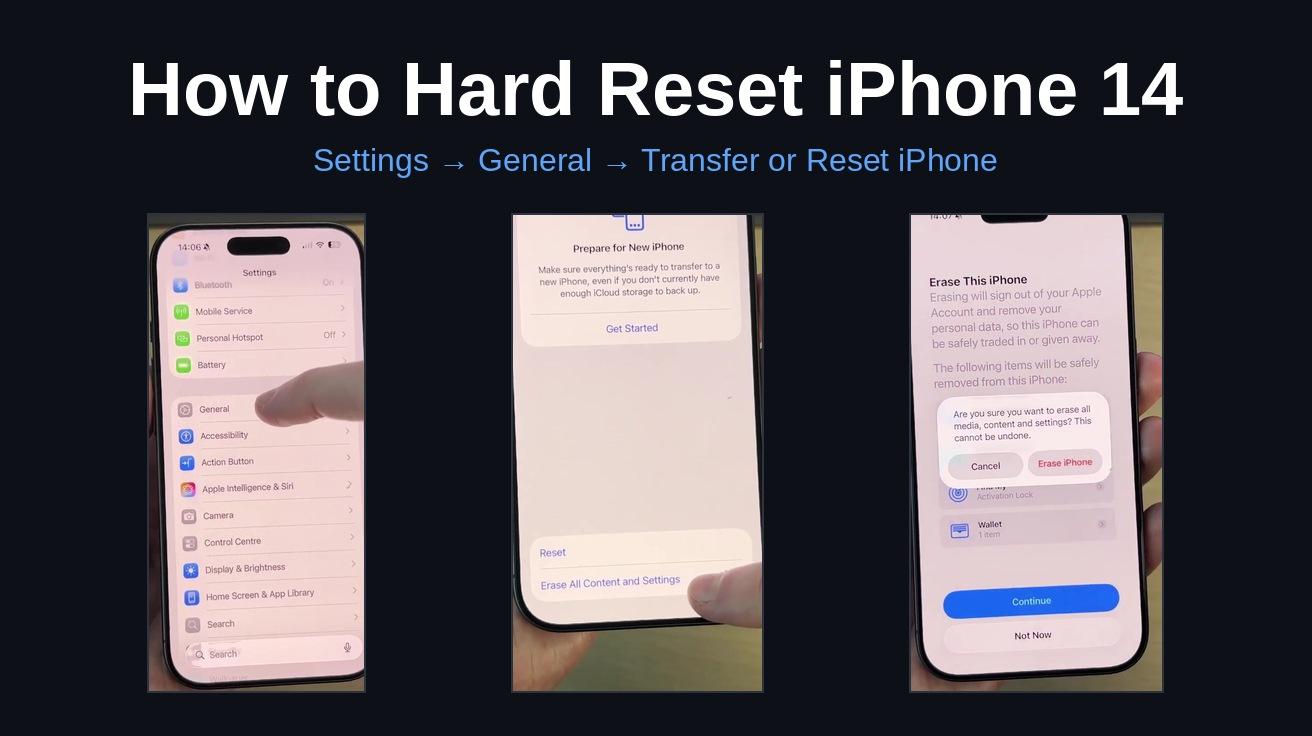
How to hard reset iPhone 14 depends on which reset you mean. To force a frozen phone to restart, press and release Volume Up, press and release Volume Down, then hold the Side button until the Apple logo appears. To wipe the phone back to factory condition, go to Settings > General > Transfer or Reset iPhone > Erase All Content and Settings.
Those two jobs get confused constantly, and they are not interchangeable. A force restart keeps every photo, app and message on the phone. A factory reset deletes all of it. Picking the wrong one is the difference between a two-second fix and an afternoon of restoring a backup.
This guide covers both, and the one most people mean is the second: erasing the phone before selling it, handing it on, or starting clean after a problem nothing else has shifted. If your phone is simply frozen and you want it working again, see our walkthrough on restarting an iPhone 14 first.
Before you erase anything
An erase cannot be undone. Everything that is not already in a backup or in iCloud is gone when it finishes.
Back up first. Settings > [your name] > iCloud > iCloud Backup > Back Up Now, or connect the phone to a computer and back it up there. Apple recommends backing up before erasing so you can put your content, settings and apps back afterwards. If you plan to restore to this phone or a new one, our guide to restoring an iPhone from a backup covers what happens next.
You will also need two things to finish the erase: your device passcode and your Apple Account password. The password is what switches off Find My and Activation Lock. If you cannot remember it, sort that out before you start — finding your Apple ID password is far easier while the phone still works.
If you have an Apple Watch paired to this iPhone, Apple says to unpair it first.
How to hard reset iPhone 14 from Settings
This is the full factory reset. It takes a few minutes and ends on the Hello setup screen.
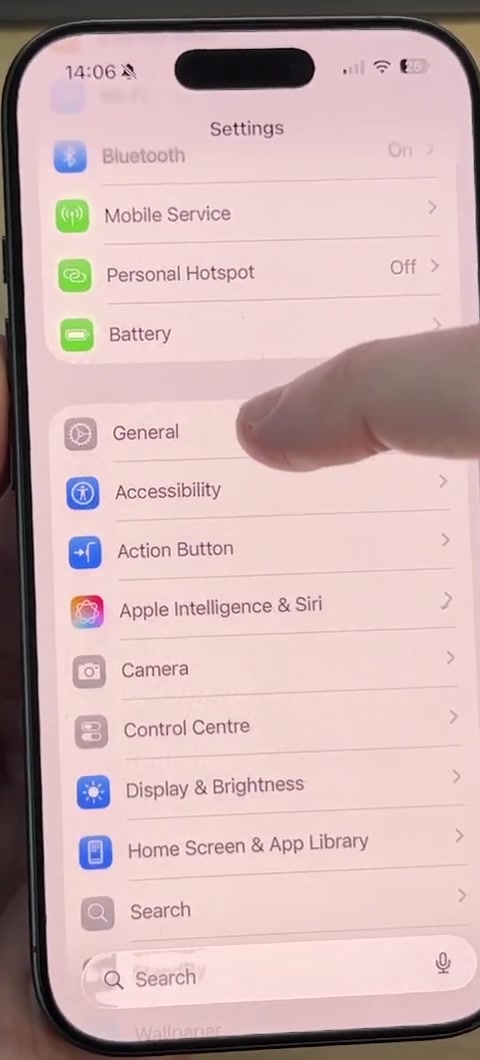
1. Open Settings and tap General.
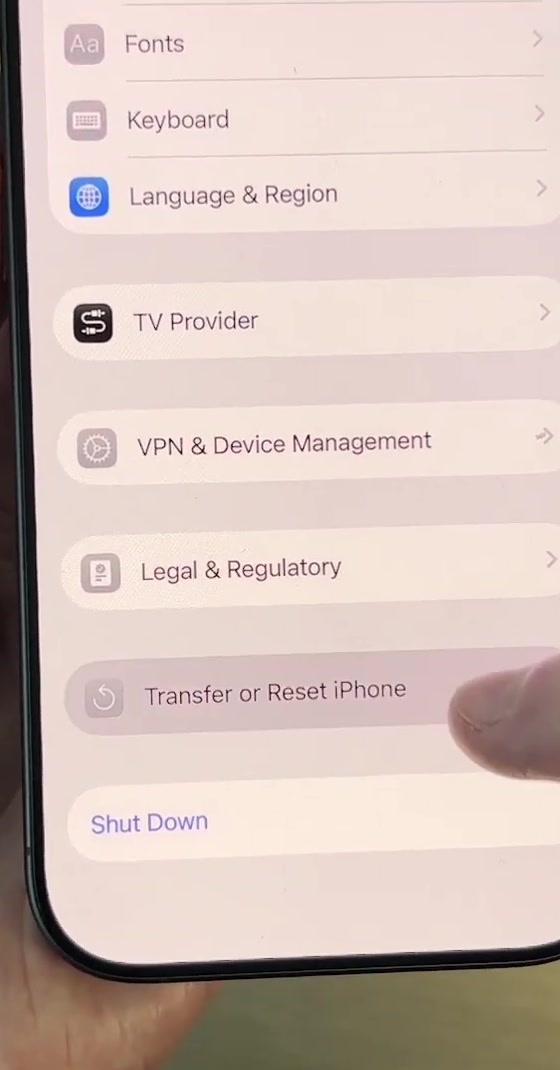
2. Scroll to the bottom of General and tap Transfer or Reset iPhone.
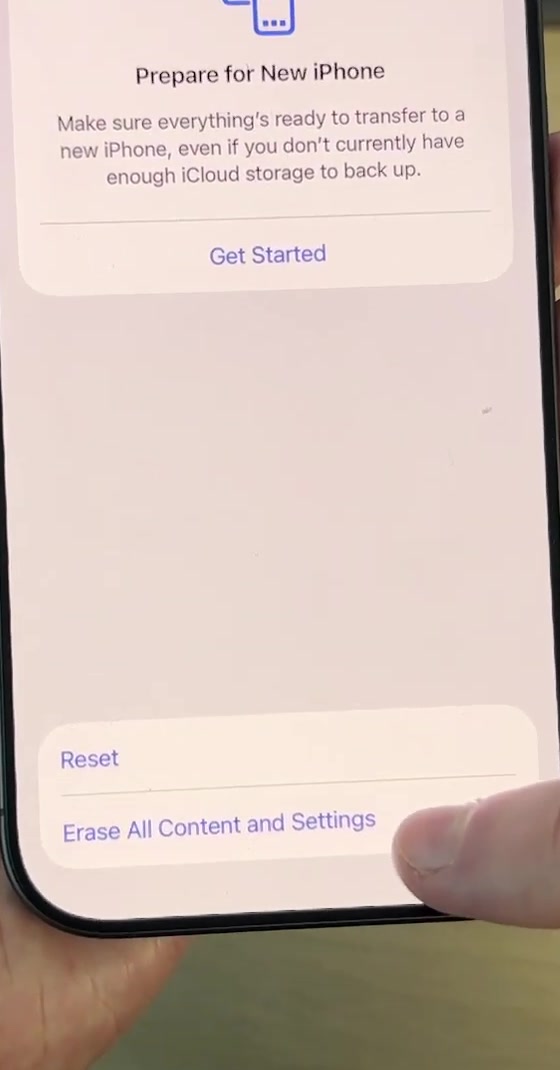
3. Tap Erase All Content and Settings at the bottom of the screen. Do not tap Reset above it — that one only clears settings, which is a different job.
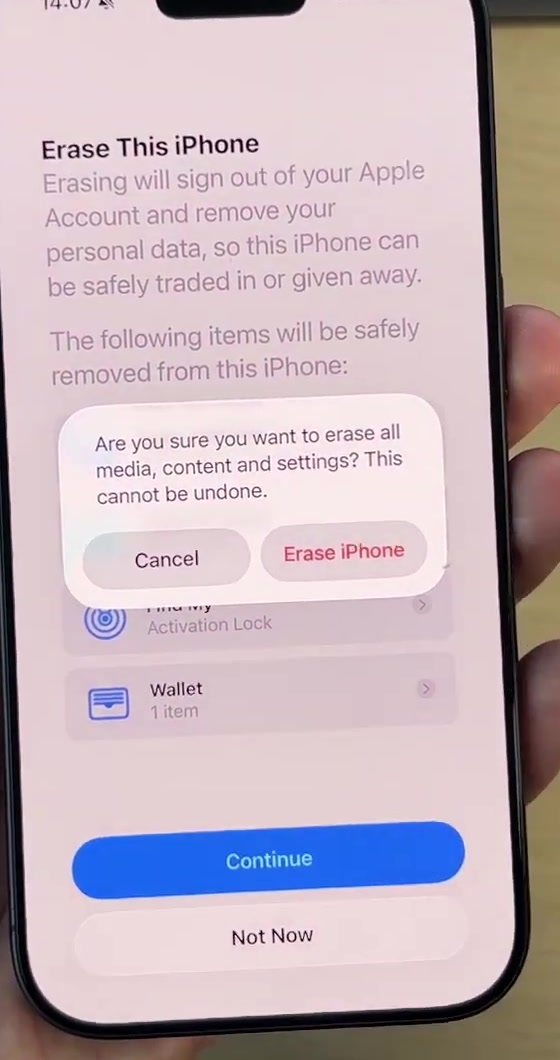
4. Read the Erase This iPhone summary, which lists what is about to be removed, then tap Continue and confirm when the phone asks whether you are sure.
5. Choose whether to keep or delete your eSIM. Apple's options are Keep eSIM and Erase Data or Delete eSIM and Erase Data. Delete it only if you are passing the phone on — if you delete it, you have to contact your carrier to get your cellular plan back.
6. Enter your device passcode, wait for the backup step to finish, then enter your Apple Account password and tap the done key.
7. Wait. The phone restarts into the Hello screen when it has finished.
The other hard reset: forcing a frozen iPhone 14 to restart
If the screen is frozen, unresponsive to touch, or stuck on the Apple logo, this is the one you want. It loses nothing.
1. Press and quickly release Volume Up.
2. Press and quickly release Volume Down.
3. Press and hold the Side button until the Apple logo appears, then let go.
The power-off slider may show up partway through. Keep holding the Side button anyway — the screen will go dark and the Apple logo will come back. The sequence has to be brisk; pausing between the volume presses is the usual reason it does not work.
What a factory reset does not do
It does not remove the phone from your Apple Account on its own if you skip the password step. Apple's guidance is that erasing the device turns off Find My and Activation Lock — that only happens when the erase runs properly with your Apple Account password entered.
It does not fix hardware. A failing battery, a damaged charging port or a cracked display will behave exactly the same afterwards.
It does not downgrade or reinstall iOS. The phone comes back on the version it was already running. Reinstalling iOS means restoring from a computer in recovery mode instead.
And it does not free up iCloud storage. Your backups and iCloud photos stay where they are. If storage is the real problem, clearing space is a far smaller job than wiping the phone.
Common questions
Will a hard reset remove the passcode if I have forgotten it? Not from Settings — you need the passcode to get that far. Apple's route for a locked phone is to erase it through recovery mode from a computer, and Apple notes that restoring that way reinstalls iOS and erases all data. You still need your Apple Account password afterwards to get past Activation Lock, because the phone is still tied to your account.
How long does it take? Usually a few minutes once you have entered both passwords, though the backup step beforehand can take considerably longer depending on how much is on the phone and how fast your connection is.
Can I stop it halfway? No. Once you confirm, let it finish and let the battery hold out. Plug the phone in before you start if it is low.
If Transfer or Reset iPhone is not there
On a managed phone — one issued by an employer or a school — the option can be hidden or greyed out by a device management profile. Check Settings > General > VPN & Device Management to see whether a profile is installed. If one is, the organisation that issued the phone controls whether it can be erased.
Screen Time restrictions can also hide it. Settings > Screen Time > Content & Privacy Restrictions, then look under the section covering changes to the device, where erasing can be blocked.
On a phone you own outright with no profile and no restrictions, the row is always at the bottom of General. If you cannot see it, scroll further — it sits below Legal & Regulatory and above Shut Down.