How to Scan QR Code With iPhone (Camera, Control Center)
Your iPhone has scanned QR codes without an extra app since iOS 11. Here is the Camera method, the Control Center control, the Settings toggle that switches it off, and how to read a code already saved in Photos.
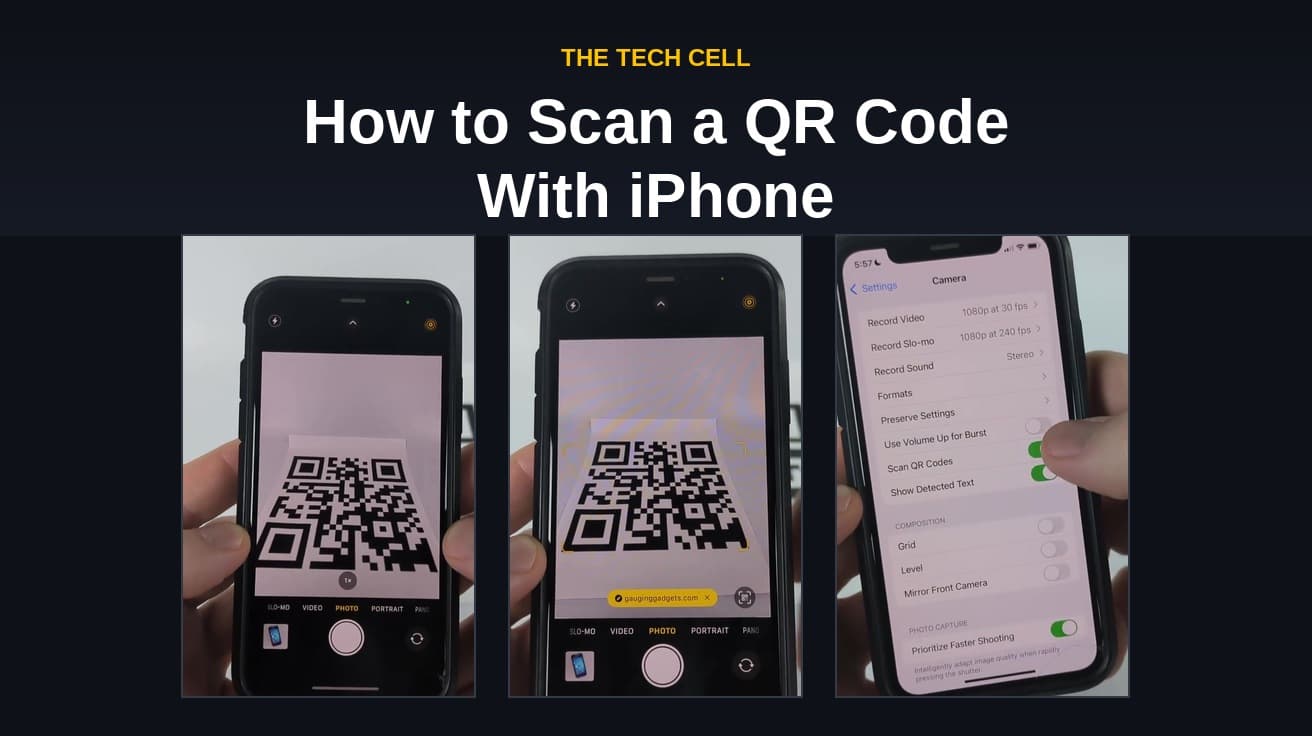
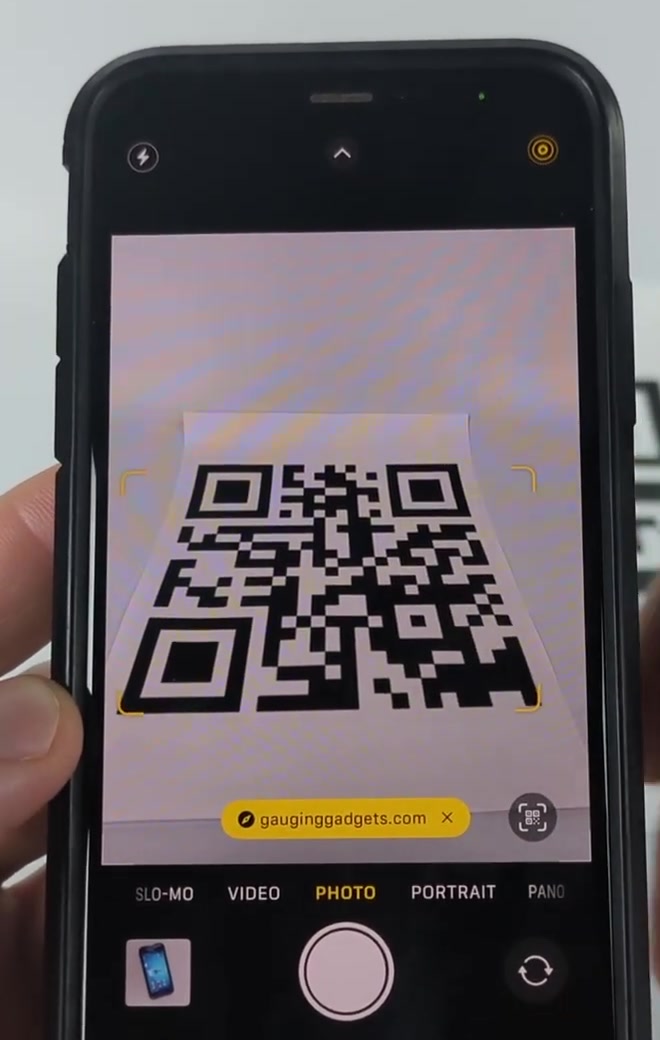
Open the Camera app, hold the rear camera steady over the QR code in Photo mode, and wait for the yellow banner to appear near the bottom of the screen. Tap that banner to open the link. If no banner ever shows up, check that Scan QR Codes is switched on in Settings.
Knowing how to scan a qr code with iphone is mostly a matter of knowing that there is nothing to install. Apple built code scanning into the Camera app in iOS 11, and it has stayed there ever since. Point, wait, tap.
The part that catches people out is the tap. Your iPhone will recognise the code and show you where it leads, but it will not open anything on its own. If you lower the phone the moment the banner appears, you have scanned the code and gone nowhere.
How to scan a QR code with iPhone using the Camera app
1. Open the Camera app from the Home Screen, the Lock Screen or Control Center, and make sure you are in Photo mode. Apple's own instructions specify Photo mode, so if you were last in Video or Portrait, swipe back.
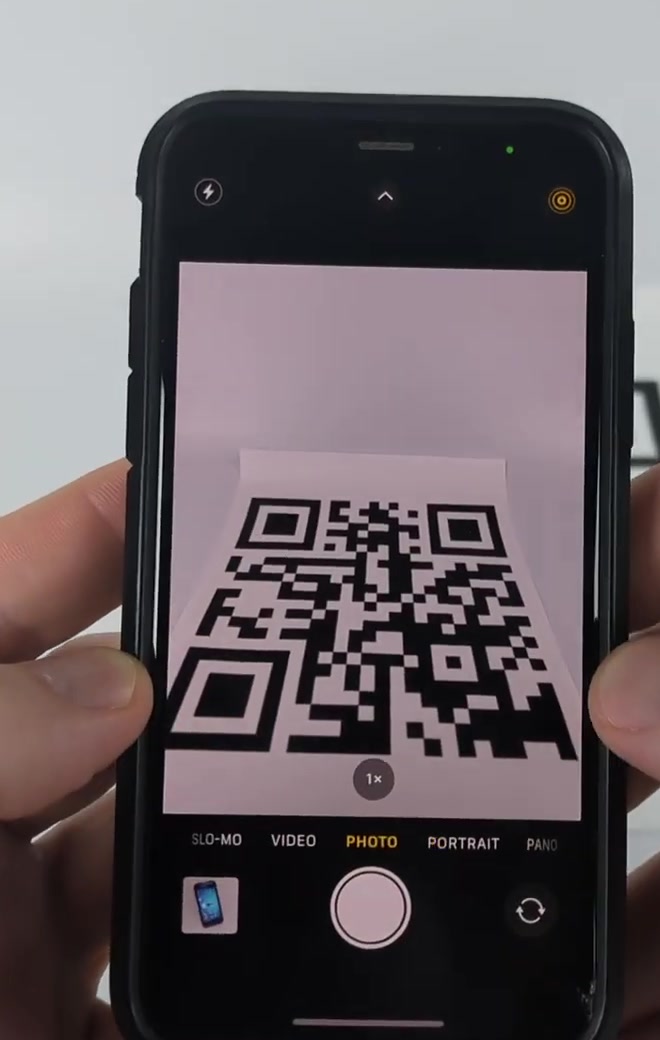
2. Hold the phone so the whole code sits inside the frame. Filling more of the viewfinder helps, and so does keeping the phone square to the code rather than at a sharp angle.
3. Wait for the yellow banner at the bottom of the viewfinder, then tap it. The banner shows the destination, which is worth reading before you tap.
Codes on a laptop screen, a TV or another phone scan the same way. Angle the iPhone slightly to keep the screen's own glare out of the shot.
Where the Scan QR Codes setting lives
Scanning is on by default, so most people never touch this. If the Camera app refuses to recognise anything, this is the first thing to rule out.
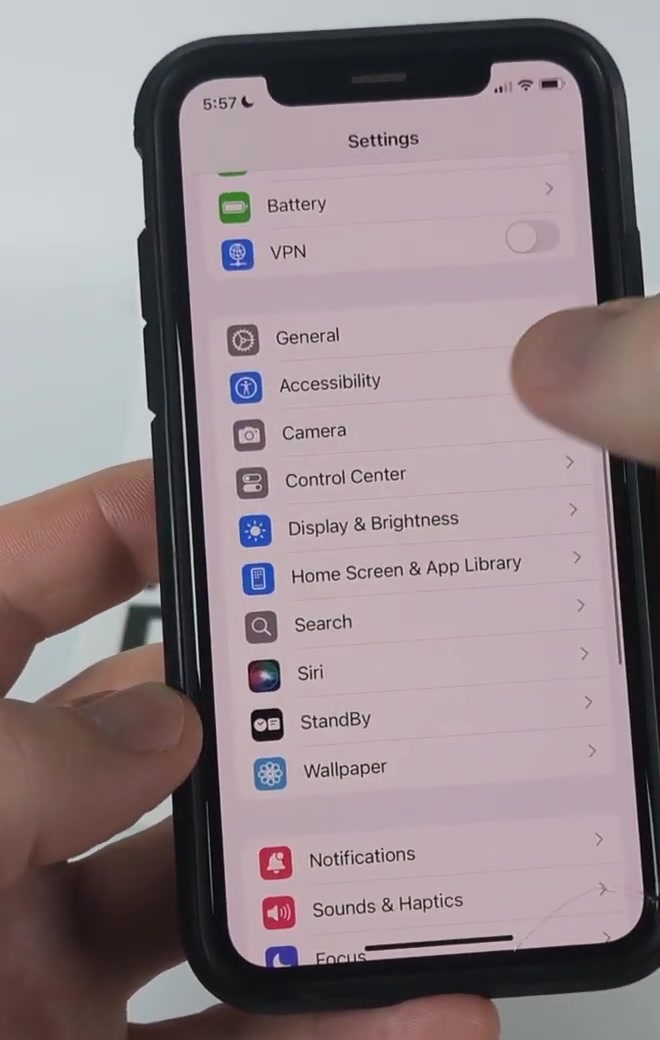
1. Open Settings and scroll to Camera.
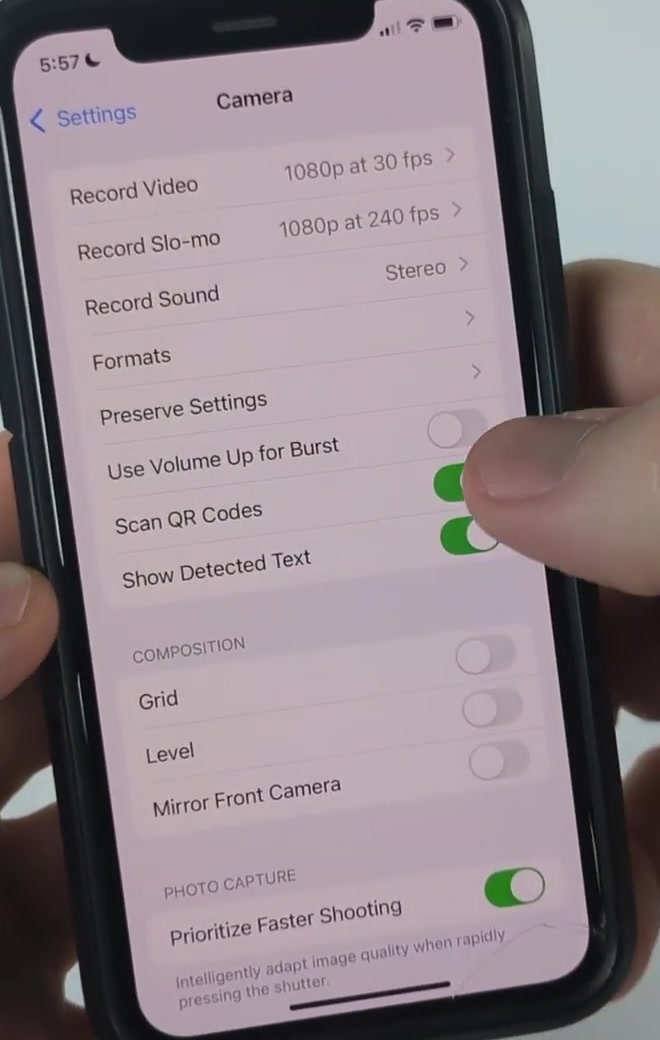
2. Turn on Scan QR Codes. A green switch means the Camera app is watching for codes.
If you cannot see Camera in the list at all, type Scan QR Codes into the search field at the top of Settings and tap the result.
Faster routes: Control Center and the Camera Control
Control Center has a dedicated scanner that opens straight into a scanning view, which is quicker than launching the Camera app and switching to Photo mode. Apple's current documentation calls the control Scan Code; older iOS versions and most older guides call the same thing Code Scanner, and the underlying app still carries that name. Expect to see either word depending on your iOS version.
To add it: open Control Center, touch and hold the background of the screen, tap Add a Control, then pick Scan Code from the gallery. Tap anywhere to return. After that it is one swipe away.
On iPhone models with a Camera Control button, pressing that button opens the Camera app directly, which gets you to the same place without touching the screen.
Scanning a QR code already on your iPhone
A code someone texted you, or one you screenshotted, cannot be pointed at. Live Text handles those instead, on iOS 15 and later.
- Open the image in Photos.
- Tap the Live Text button in the bottom corner of the image, or press and hold directly on the code itself.
- Tap the highlight that appears over the code to see and open the link.
Heavily cropped, blurred or low-resolution images often will not resolve. If the original is still in the conversation it came from, go back to that rather than fighting the screenshot.
What this does not do
It does not open links for you. The banner is a prompt, not an action, and that is deliberate.
Scan QR Codes in Settings is a Camera app setting. It is the switch that governs whether the Camera app looks for codes; a dedicated scanner control or a third-party scanning app is a separate route to the same job. Apple does not document how the toggle interacts with them, so if the Camera app has stopped working, trying the Control Center scanner is a useful way to narrow down where the problem sits.
It does not keep a history. Once you dismiss a banner, the only record is wherever the link took you.
Wallet's own Scan Code option is not a general scanner either. That one is for adding boarding passes, tickets and similar passes, and it will ignore an ordinary link.
Most of all, it does not vet anything. The banner shows a destination, and reading it is the only check between you and whatever is on the other side. A code on a sticker in a car park is about as trustworthy as a link in an unexpected email. If something you scanned has left you uneasy about the phone itself, there are signs worth checking in Settings.
Common questions
Do I need to download a QR scanner app? No. Any iPhone running iOS 11 or later scans codes through the Camera app, and iOS 15 or later can read them out of saved images too.
Why doesn't the link open by itself? Because Apple's design puts a tap between detection and opening. Your iPhone has scanned the code successfully; it is waiting for you to decide.
Can I scan a code from a screenshot? Yes, through Live Text in Photos, as long as the image is clear enough for the pattern to be read.
If the option isn't there
Search Settings for Scan QR Codes before concluding it is missing, since the Camera settings moved location in recent iOS releases.
Check for a software update, then restart the iPhone before going further. A restart clears a surprising number of camera faults.
Test the same code on another phone. If it fails there too, the code is damaged or expired and no setting on your iPhone will change that. If it works there but not on yours, try the Control Center scanner next, which tells you whether the problem is the Camera app specifically.
If codes scan but the link refuses to open, the block may be content restrictions rather than the scanner. Screen Time can prevent web pages from loading, which looks identical to a failed scan from the outside, and the same settings are used to block websites on iPhone deliberately.